Thank you for visiting the AUSTRALIA HP Store
-
Contact Us
CONTACT USCall us
- Sales
- 1300 540 516
- Technical support
- 13 23 47
Exc. public holidays
Chat with us- Our specialist are here to help
- Live Product Demo
- Sales
- 61288061500 (WhatsApp)
-

- Post Sales
- 61288061700(WhatsApp)
Exc. public holidays
Live product demo
Submit feedback We value your opinion! - My Account

Search
How to Properly Configure Graphics Settings on Your HP OMEN: Hybrid vs Discrete Mode

Posted:
October 06, 2025
Categories:
Miscellaneous
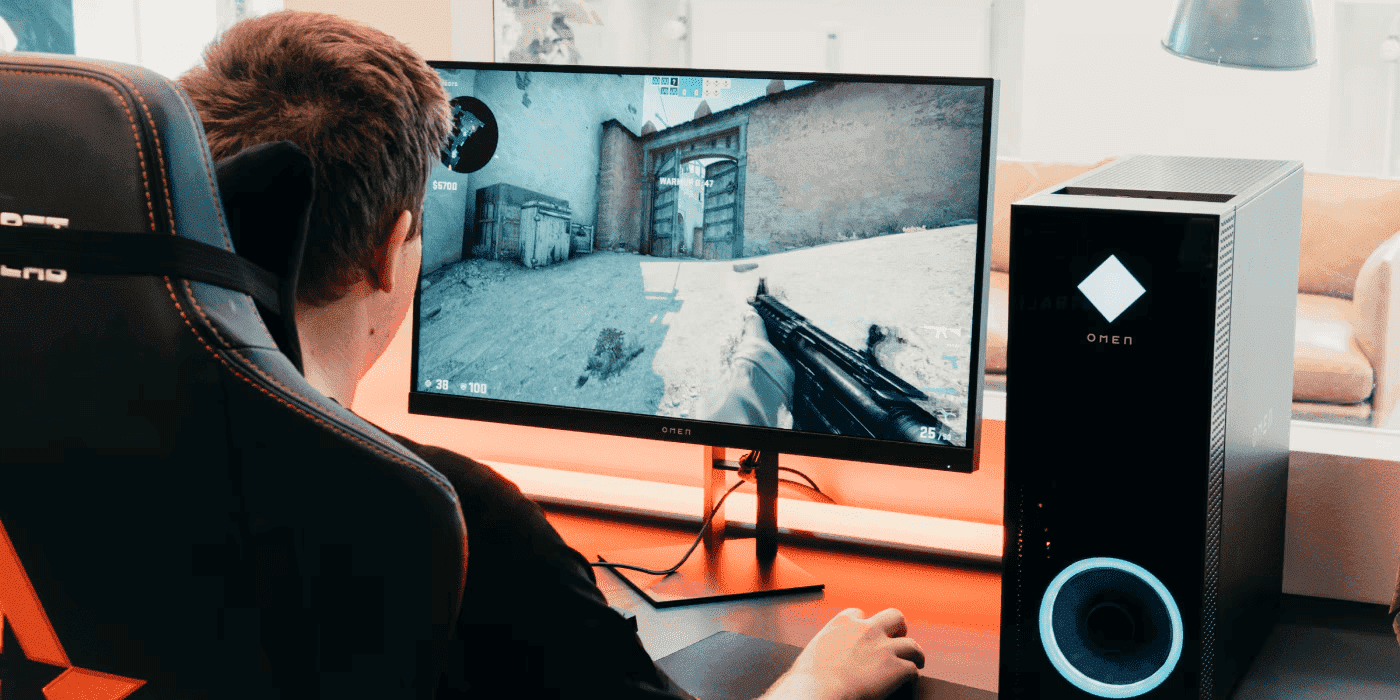
Your HP OMEN gaming PC delivers powerful performance for gaming, content creation, and everything in between. Whether you’re battling mates in competitive shooters or crafting the next viral video, maximising that power whilst managing battery life requires understanding your graphics settings. Through the OMEN Gaming Hub, you can switch between Hybrid mode, which intelligently balances integrated and dedicated graphics, and Discrete mode, which unleashes your GPU’s full potential.
This guide explains how these modes work, why they matter for both performance and battery life, and walks you through configuration step by step. Whether you’re chasing maximum frame rates or extending battery life during a long commute, we’ll help you optimise your OMEN for any situation.
Contents
Understanding Graphics Modes in HP OMEN Systems
Hybrid Graphics: Smart GPU Switching
Hybrid mode intelligently manages both your Intel integrated graphics and your NVIDIA or AMD dedicated graphics card. Here’s how it works:
Simple tasks like browsing, document editing, and video streaming run on Intel’s integrated graphics, conserving battery and reducing heat. When you launch a game or graphics-intensive application, the system seamlessly switches to your dedicated GPU for maximum performance.
This intelligent switching happens automatically in the background, giving you the best of both worlds: extended battery life for everyday tasks and powerful graphics when you need them. It’s the ideal setting for users who switch between work and play throughout the day, perfect for Australian professionals who game after hours.
Discrete Mode: Unleashing Full GPU Power
Discrete mode bypasses integrated graphics entirely, routing everything through your dedicated graphics card. This delivers:
- Maximum frame rates in games
- Consistent performance in creative applications
- Smoother rendering in 3D modelling and video editing
- Reduced latency in competitive gaming
The trade-off? Higher power consumption, increased heat generation, and louder fan noise. Your battery will drain significantly faster, making this mode best suited for desktop use or when plugged into power. This is particularly important to consider in Australia’s warmer climate, where thermal management becomes crucial during extended gaming sessions.
Automatic vs Manual Control
Automatic switching occurs in Hybrid mode without any input from you. Your OMEN detects GPU requirements and switches seamlessly based on application demands.
Manual control through OMEN Gaming Hub lets you force specific modes based on your preferences. Want maximum battery life during a presentation? Lock it to Hybrid. Ready for a gaming marathon? Switch to Discrete.
The process is straightforward—change modes in Gaming Hub, restart your system, and your OMEN remembers your preference until you change it again.
Performance and Power Consumption Breakdown
Hybrid Mode Benefits:
- Extends battery life by 30-40% during typical use
- Reduces system temperature and fan noise
- Automatically optimises for each application
- Perfect for mixed workloads and travel
- Ideal for hot Australian summers when thermal management matters
Hybrid Mode Limitations:
- Slight delay when switching between GPUs
- Not optimal for consistent high-performance tasks
- May cause stuttering if switching occurs mid-game
Discrete Mode Benefits:
- Delivers 25-30% higher frame rates in games
- Eliminates GPU switching delays
- Ensures consistent performance in demanding applications
- Unlocks features like ray tracing and DLSS
- Provides stable performance for competitive gaming
Discrete Mode Limitations:
- Drains battery 2-3 times faster than Hybrid mode
- Generates more heat requiring active cooling
- Louder fan noise during intensive tasks
- Requires adequate cooling in warm environments
Getting Started with OMEN Gaming Hub
Installation and Setup
Most OMEN systems come with Gaming Hub pre-installed. If you need to install it:
- Open Microsoft Store
- Search for “OMEN Gaming Hub”
- Click Install and wait for completion
- Launch from Start menu or system tray
Upon first launch, check for updates immediately—this ensures you have the latest features and bug fixes.
Navigating Graphics Settings
The graphics switcher lives under Performance Control or Graphics Switcher (varies by model). The interface is intuitive:
- Clear toggle between Hybrid and Discrete modes
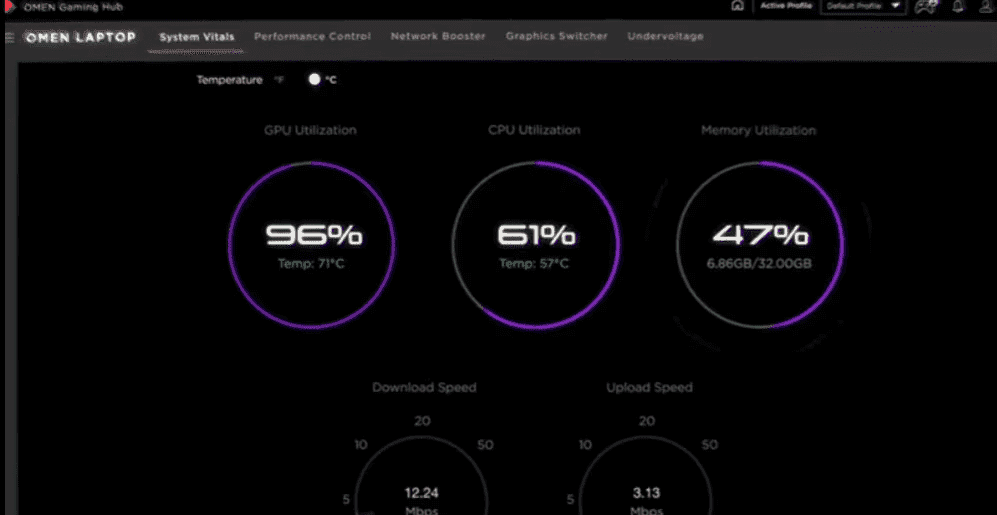
- Real-time GPU usage monitoring
- Temperature and performance metrics
- Quick access to game-specific settings
System Requirements
Graphics switching requires:
- An OMEN with both integrated and dedicated graphics
- Updated GPU drivers (NVIDIA or AMD)
- Latest BIOS version
- Windows 10/11 with current updates
- OMEN Gaming Hub version 11.0 or newer
If the graphics switcher doesn’t appear, your model may not support this feature—check your specifications or contact HP support.
Initial Configuration Best Practices
Start with these recommended settings:
- Set Hybrid as your default mode
- Enable Game Detection for automatic optimisation
- Configure application-specific GPU assignments
- Set up performance profiles for different scenarios
- Enable driver update notifications
Step-by-Step Configuration Guide
Switching Between Modes
- Open OMEN Gaming Hub from Start menu or system tray
- Navigate to Graphics Switcher in the sidebar
- Select your preferred mode:
- Hybrid for balanced performance
- Discrete for maximum power
- Click Apply and confirm the restart prompt
- Save your work and restart immediately
Optimising Hybrid Mode
To maximise battery efficiency in Hybrid mode:
- Navigate to Windows Settings > System > Display > Graphics
- Set non-gaming apps to “Power Saving” (integrated GPU)
- Configure OMEN Gaming Hub to auto-detect games
- Enable Windows Battery Saver at 20% charge
- Reduce display brightness when on battery
Configuring Discrete Mode for Gaming
For peak gaming performance:
- Switch to Discrete mode in Gaming Hub
- Connect to power (essential for sustained performance)
- Set Windows to High Performance power plan
- Disable Windows GPU scheduling
- Configure game-specific settings in NVIDIA Control Panel or AMD Software
Application-Specific GPU Assignment
Take granular control over GPU usage:
- Open Windows Settings > System > Display > Graphics
- Click Browse and select an application
- Click Options and choose:
- “Power Saving” for integrated GPU
- “High Performance” for dedicated GPU
- Apply settings (no restart required)
This lets you run Discord on integrated graphics whilst gaming on your dedicated GPU, optimising both performance and efficiency.
Troubleshooting Common Issues
Mode Won’t Switch:
- Restart after changing modes
- Update GPU drivers through GeForce Experience or AMD Software
- Run Windows Update
- Reset OMEN Gaming Hub to defaults
Screen Flickering After Switch:
- Disable and re-enable display adapter in Device Manager
- Update display drivers
- Check cable connections (external monitors)
Games Not Detecting GPU:
- Verify mode switch completed (check Gaming Hub)
- Manually assign game to high-performance GPU
- Disable integrated graphics in BIOS (advanced users only)
High Temperatures During Gaming:
- Ensure proper ventilation around your laptop
- Use a cooling pad, especially during Australian summer
- Clean vents and fans regularly
- Monitor ambient room temperature
- Consider reducing in-game graphics settings if thermal throttling occurs
Optimising for Different Use Cases
Gaming Performance
Competitive Gaming (FPS/MOBA):
- Use Discrete mode exclusively
- Disable V-Sync for lower latency
- Set refresh rate to maximum
- Configure low latency mode in NVIDIA/AMD settings
- Ensure stable power supply for consistent performance
Single-Player/RPG Gaming:
- Discrete mode when plugged in
- Hybrid acceptable for older/less demanding titles
- Enable ray tracing and DLSS when available
- Prioritise visual quality over raw FPS
Productivity Workflows
Office Work:
- Hybrid mode for all-day battery life
- Assign Office apps to integrated GPU
- Enable battery saver features
- Reduce screen refresh rate to 60 Hz
Programming/Development:
- Hybrid for coding and documentation
- Discrete for compiling and testing
- Configure IDE to use integrated GPU
- Switch modes based on workflow stage
Content Creation
Video Editing:
- Hybrid for timeline editing and colour correction
- Discrete for rendering and encoding
- Assign preview to integrated, export to dedicated
- Monitor temperatures during long renders
3D Modelling/CAD:
- Discrete for viewport performance
- Consider workstation drivers for stability
- Manually assign applications to dedicated GPU
- Enable GPU acceleration in application settings
Advanced Tips and Best Practices
Performance Monitoring
Track your system’s behaviour using:
- OMEN Gaming Hub: Real-time GPU usage and temperatures
- Task Manager: GPU utilisation per application
- GPU-Z: Detailed technical information
- MSI Afterburner: Advanced monitoring and overclocking
Driver Management
Keep drivers current for optimal switching:
- Check OMEN Gaming Hub weekly for updates
- Use GeForce Experience or AMD Software for GPU drivers
- Update BIOS quarterly through HP Support Assistant
- Sync Windows Updates with driver installations
System Maintenance
Maintain peak performance with regular maintenance:
- Clean vents and fans every 3 months (more frequently in dusty Australian conditions)
- Repaste thermal compound annually (advanced users only)
- Monitor temperatures during gaming sessions
- Use cooling pads for extended Discrete mode use
- Run disk cleanup monthly to free resources
Power Management Best Practices
Create custom power profiles for different scenarios:
- Use Discrete mode only when plugged in
- Enable Hybrid before unplugging power
- Configure automatic switching schedules
- Monitor battery health through HP Support Assistant
- Consider investing in a quality surge protector for Australian power outlets
Conclusion
Mastering your OMEN’s graphics modes transforms your computing experience. Hybrid mode delivers intelligent performance with exceptional battery life, whilst Discrete mode unleashes raw power for demanding tasks. The key is knowing when to use each mode and configuring your system accordingly.
Start with Hybrid for daily use, switch to Discrete for gaming sessions, and customise application-specific settings for ultimate control. Regular maintenance, driver updates, and smart power management ensure your OMEN performs optimally in any situation, whether you’re battling through a competitive match or creating your next masterpiece.
Remember, graphics configuration is just one aspect of the OMEN ecosystem. Explore Gaming Hub’s network optimisation, RGB customisation, and performance tuning features to fully personalise your gaming experience. For more guidance on maximising your HP gaming setup, visit HP Tech Takes Australia for expert tips and insights tailored to Australian gamers.
With the right configuration and understanding of your OMEN’s capabilities, you’ll be ready to dominate the Australian gaming scene, whether competing in esports tournaments or enjoying immersive single-player adventures. Make the most of your investment by leveraging both Hybrid and Discrete modes to suit your unique gaming and productivity needs.
Recent Posts


Popular Posts





Products purchased through this store are sold and fulfilled by Ingram Micro Pty Limited

CONTACT US
Call us
- Sales
- 1300 540 516
- Technical support
- 13 23 47
Exc. public holidays
Chat with us
- Our specialist are here to help
- Live Product Demo
- Sales
- 61288061500 (WhatsApp)
-
- Post Sales
- 61288061700(WhatsApp)
Exc. public holidays
Live product demo
Submit feedback
We value your opinion!