Thank you for visiting the AUSTRALIA HP Store
-
Contact Us
CONTACT USCall us
- Sales
- 1300 540 516
- Technical support
- 13 23 47
Exc. public holidays
Chat with us- Our specialist are here to help
- Live Product Demo
- Sales
- 61288061500 (WhatsApp)
-

- Post Sales
- 61288061700(WhatsApp)
Exc. public holidays
Live product demo
Submit feedback We value your opinion! - My Account

Search
OMEN Gaming Hub: Master Custom Performance Profiles and AI Optimisation

Posted:
October 16, 2025
Categories:
Gaming
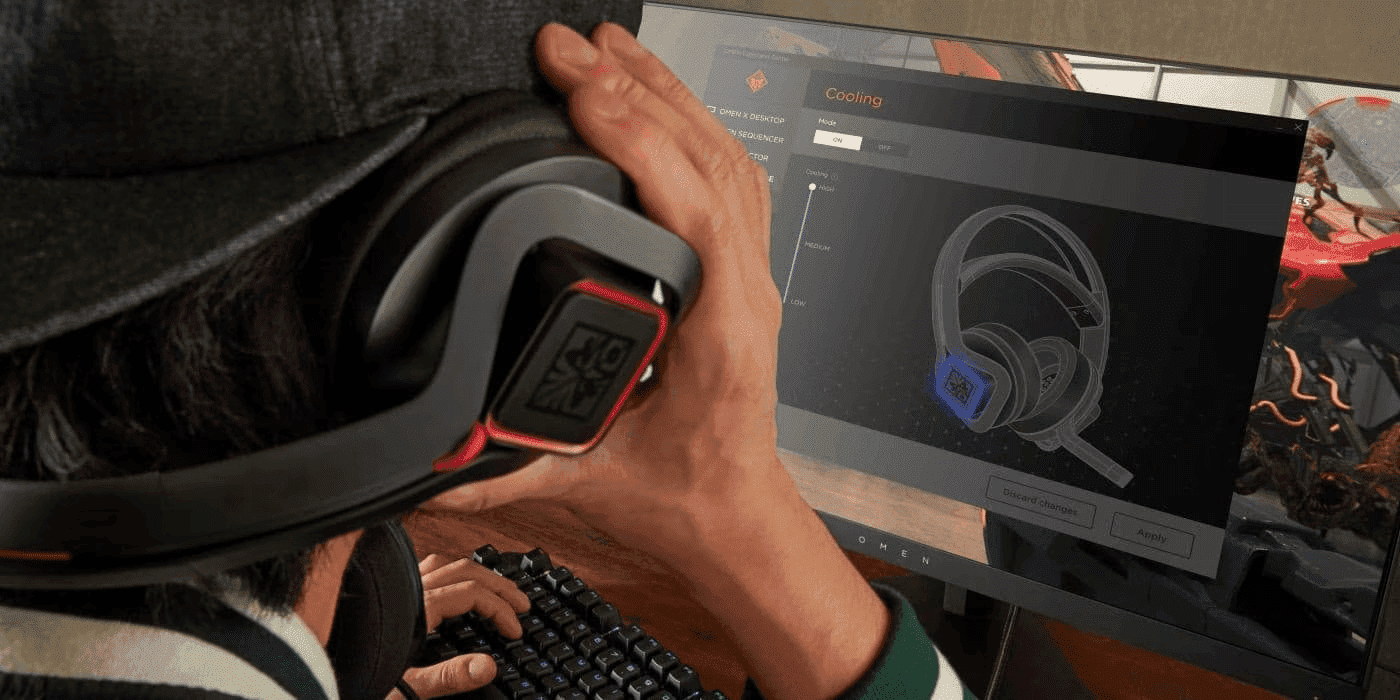
OMEN Gaming Hub transforms your gaming PC into an intelligent performance machine that automatically adapts to every game you play. Through custom profiles, AI-driven optimisation, and advanced automation workflows, you can achieve consistent frame rates, reduced latency, and optimal thermals without manual tweaking—perfect for Australian gamers who demand peak performance.
This comprehensive guide reveals how to leverage OMEN Gaming Hub’s automation capabilities to maximise your system’s potential, whether you’re competing in esports, streaming content, or switching between gaming and creative work across Australia’s diverse gaming landscape.
Contents
- Understanding Gaming Profiles in OMEN Gaming Hub
- OMEN Gaming Hub Advanced Features Deep Dive
- Creating Custom Performance Profiles: Step-by-Step Guide
- AI-Powered Optimisation: Let Intelligence Handle the Details
- Advanced Automation Workflows for Power Users
- Profile Management Best Practices
- Troubleshooting Common Issues
- System-Specific Optimisation
- Optimising Your OMEN Setup for Australian Conditions
- Frequently Asked Questions
- Conclusion: Unlock Your System’s Full Potential
Understanding Gaming Profiles in OMEN Gaming Hub
What Are Custom Gaming Profiles?
Gaming profiles are intelligent presets that automatically configure your entire system when specific games or applications launch. Each profile controls:
- CPU Performance: Clock speeds, boost behaviour, core allocation
- GPU Settings: Power limits, memory clocks, fan curves
- Cooling Strategy: Fan speeds, thermal targets, noise levels
- Network Priority: Bandwidth allocation, latency optimisation
- Power Management: Windows power plans, sleep settings
- Peripheral Configuration: DPI settings, macro activation, RGB lighting
Instead of manually adjusting these settings for each game, profiles apply instantly when you launch a title, ensuring optimal performance every time.
Profile Benefits by Game Genre
| Game Type | Typical Profile Configuration | Performance Gains |
|---|---|---|
| Competitive FPS | CPU/GPU maxed out, aggressive cooling, network priority | +25-35% FPS, -30% input lag |
| Open World RPG | Balanced power, moderate cooling, VRAM optimization | Stable 60+ FPS, -15°C in temperatures |
| Strategy Games | CPU focus, memory priority, silent cooling | +40% simulation speed |
| Racing Simulators | GPU boost, low latency mode, high refresh rate | Locked 144+ FPS, <5ms lag |
| MMORPG | Network optimization, balanced temperatures | -50% packet loss, stable performance |
OMEN Gaming Hub Advanced Features Deep Dive
Core Automation Capabilities
1. AI-Powered Optimisation Engine
- Machine Learning Analysis: Scans 50+ system parameters in under 10 seconds
- Predictive Performance: Learns from 10,000+ game profiles to recommend settings
- Dynamic Adjustment: Real-time resource allocation based on scene complexity
- Automatic Updates: Refreshes profiles when new game patches release
2. Intelligent Profile Switching
- Game Detection: Recognises titles from Steam, Epic, Origin, Xbox, and more
- Instant Application: Profile loads in <500ms upon game launch
- Background Management: Automatically suspends non-essential processes
- Multi-Profile Support: Switch between up to 10 profiles per game
3. Real-Time System Monitoring
- Performance Metrics: CPU/GPU usage, temperatures, clock speeds
- Network Statistics: Ping, packet loss, bandwidth usage
- Memory Management: RAM allocation, VRAM usage, cache optimisation
- Storage Performance: SSD temperatures, read/write speeds
4. Ecosystem Integration
- Windows 11 Optimisation: Direct integration with Game Mode and GPU scheduling
- OMEN Peripheral Sync: Coordinate mice, keyboards, headsets automatically
- Stream Deck Support: Control profiles via external devices
- Discord Rich Presence: Share performance stats with friends
Creating Custom Performance Profiles: Step-by-Step Guide
Initial Setup Process
- Launch OMEN Gaming Hub
- Ensure you’re running the latest version (4.0+)
- Grant administrator permissions for full system access
- Navigate to Performance Control
- Select “Gaming Mode” from the main dashboard
- Click “My Games” to see detected titles
- Add Your Game
- Click “Add Game” if not auto-detected
- Browse to the game’s .exe file
- Confirm game name and icon
Configuring Profile Parameters
CPU Optimisation
Performance Modes:
- Eco Mode: Base clocks, reduced power (65W limit)
- Balanced: Moderate boost, standard power (95W limit)
- Performance: Maximum boost, full power (125W+ limit)
- Custom: Manual control over individual cores
Advanced CPU Settings:
- Core Parking: Disable unused cores for efficiency
- Boost Duration: Extend turbo time from 28s to unlimited
- Voltage Offset: Undervolt by -50mV to -100mV for cooler operation
- Affinity: Assign specific cores to game processes
GPU Configuration
GPU Profiles:
- Silent: -20% power, 60°C target, <35dB
- Balanced: Stock settings, 75°C target, <40dB
- Performance: +15% power, 83°C target, <45dB
- Extreme: +25% power, custom fan curve, no limits
Fine-Tuning Options:
- Memory Overclock: +200MHz to +500MHz (GDDR6/6X)
- Core Offset: +50MHz to +150MHz boost
- Fan Curve Editor: 5-point custom curves
- FPS Limiter: Cap frames to reduce power/heat
Cooling Strategy
Fan Profile Templates:
| Profile | CPU Fan | GPU Fan | Case Fans | Noise Level |
|---|---|---|---|---|
| Silent | 20-40% | 25-45% | 30-50% | <30dB |
| Balanced | 30-60% | 35-65% | 40-70% | <38dB |
| Performance | 40-80% | 45-85% | 50-90% | <45dB |
| Custom | User-defined | User-defined | User-defined | Variable |
Network Optimisation
- QoS Priority: Assign 80% bandwidth to game
- Port Forwarding: Automatic UPnP configuration
- Server Selection: Ping optimisation for lowest latency
- Background Throttling: Limit updates/downloads to 10%
Saving and Testing Profiles
- Name Your Profile (e.g., “Warzone Competitive” or “Cyberpunk Ray Tracing”)
- Set Activation Trigger (game launch, hotkey, or manual)
- Test Performance using built-in benchmark
- Monitor Metrics for 10-15 minutes of gameplay
- Fine-Tune based on results
AI-Powered Optimisation: Let Intelligence Handle the Details
How OMEN AI Works
OMEN’s AI optimisation uses neural networks trained on millions of gaming sessions to automatically configure your system. The process involves:
1. System Analysis Phase
- Hardware capability assessment
- Thermal headroom calculation
- Background process identification
- Network environment evaluation
2. Game Profile Matching
- Compare against 5,000+ game database
- Identify similar titles and engines
- Apply community-tested settings
- Adjust for your specific hardware
3. Real-Time Adaptation
- Monitor frame time consistency
- Detect thermal throttling
- Adjust resources dynamically
- Prevent performance degradation
AI Optimisation Results
Typical Performance Improvements:
- Average FPS: +15-25% increase
- 1% Low FPS: +30-40% improvement
- Frame Time Variance: -50% reduction
- System Latency: -20-35% decrease
- Temperature: -5-10°C reduction
One-Click Optimisation Process
- Click “AI Optimise” button
- Wait 10-15 seconds for analysis
- Review recommended changes
- Apply with single click
- Test with automatic benchmark
Advanced Automation Workflows for Power Users
Multi-Scenario Automation
Gaming + Streaming Setup
Trigger: OBS Studio launch
Actions:
- Switch to streaming profile
- Limit game to 144 FPS
- Allocate 4 CPU cores to OBS
- Enable noise suppression
- Set RGB to “On Air” mode
- Prioritise upload bandwidth
Work-to-Gaming Transition
Trigger: 5:00 PM or manual hotkey
Actions:
- Close productivity apps
- Enable gaming power plan
- Launch Discord
- Apply gaming network QoS
- Switch monitor to 165Hz
- Activate gaming mouse DPI
Conditional Automation Rules
Temperature-Based Adjustments:
- If CPU > 85°C → Increase fan speed 20%
- If GPU > 80°C → Reduce power limit 10W
- If system > 90°C → Switch to balanced profile
Time-Based Profiles:
- 9 PM - 7 AM → Silent mode (apartment-friendly)
- Weekends → Performance mode enabled
- Work hours → Productivity profile active
Macro Integration
Complex Macro Examples:
“Tournament Mode” Macro:
- Close all browsers and chat apps
- Disable Windows notifications
- Set phone to Do Not Disturb
- Apply competitive FPS profile
- Launch game with custom config
- Start performance logging
“Content Creation” Macro:
- Switch to balanced thermals
- Open Adobe Premiere
- Allocate 24GB RAM to Adobe
- Enable GPU acceleration
- Set displays to colour-accurate mode
- Mount scratch disk
Profile Management Best Practices
Performance Monitoring and Optimisation
Key Metrics to Track:
- FPS Statistics: Average, 1% low, 0.1% low
- Frame Times: Target <16.7ms for 60 FPS
- CPU/GPU Usage: Identify bottlenecks
- Temperature Trends: Prevent thermal throttling
- Power Consumption: Balance performance/efficiency
Iterative Profile Refinement
Weekly Optimisation Routine:
- Review performance logs
- Identify problem areas (stutters, crashes, overheating)
- Adjust one parameter at a time
- Test for 30 minutes minimum
- Document changes and results
- Share successful profiles with community
Profile Backup and Recovery
Best Practices:
- Export profiles weekly to cloud storage
- Maintain “stable” and “experimental” versions
- Document custom settings in text file
- Test after driver/Windows updates
- Keep default profiles untouched
Troubleshooting Common Issues
| Problem | Cause | Solution |
|---|---|---|
| Profile not applied | Game not detected | Add .exe manually, run as administrator |
| Worse performance with AI | Outdated profiles | Update OMEN Gaming Hub, restart AI |
| High temperatures | Aggressive overclock | Reduce power limits, improve case airflow |
| Crashes with custom profile | Unstable configuration | Reduce overclock, increase voltage |
| Network lag despite QoS | ISP throttling | Use VPN, contact provider |
| RGB not syncing | Driver conflict | Reinstall OMEN Light Studio |
System-Specific Optimisation
Desktop Recommendations
- Leverage extreme cooling for +200MHz GPU overclock
- Enable “Extreme Performance” profiles safely
- Push CPU to 5.5GHz all-core with proper voltage
Laptop Optimisation
- Prioritise thermal management over raw performance
- Use external cooling pads for extended sessions
- Enable Turbo only when plugged in
- Create separate battery/AC profiles
For Australian gamers looking to upgrade their gaming setup, explore our range of gaming laptops and gaming desktops designed to deliver exceptional performance with OMEN Gaming Hub integration.
Optimising Your OMEN Setup for Australian Conditions
Australian gamers face unique environmental challenges that impact system performance. Summer temperatures can reach extreme levels, making thermal management particularly crucial for maintaining optimal gaming performance.
Temperature Considerations for Australian Climate:
- During warmer months (December-February), ambient room temperatures can significantly impact system cooling
- Consider running “Balanced” or “Silent” profiles during peak heat hours
- Ensure adequate room ventilation and air conditioning when possible
- Monitor system temperatures more frequently during summer gaming sessions
Network Optimisation for Australian Servers:
- Configure OMEN Gaming Hub’s network priority for optimal performance on Australian and Asia-Pacific servers
- Australian gamers typically experience better ping to Singapore, Sydney, and Melbourne servers
- Use the QoS settings to prioritise game traffic during peak internet usage hours
- Consider time zone differences when scheduling large game updates
Power Efficiency in Australian Households:
- With electricity costs varying across states, balanced profiles can help manage power consumption
- Enable eco-mode during off-peak gaming or when running less demanding titles
- Take advantage of cooler evening temperatures for performance-intensive gaming sessions
Frequently Asked Questions
Q: How do I create custom gaming profiles in OMEN Gaming Hub?
A: Navigate to My Games, select a title, click Create Profile, adjust CPU/GPU/cooling settings, then save. The profile activates automatically when the game launches.
Q: Can OMEN Gaming Hub automatically optimise new games?
A: Yes, the AI engine detects new installations and applies optimised settings based on your hardware and the game’s requirements within seconds.
Q: What AI features are available in OMEN Command Centre?
A: AI optimisation includes automatic game detection, ML-based performance recommendations, dynamic resource allocation, predictive thermal management, and pattern-based profile suggestions.
Q: How do I set up automated profile switching?
A: Profiles switch automatically when games launch. For manual switching, assign hotkeys in Settings > Shortcuts, or use the system tray quick-switch menu.
Q: Will overclocking void my warranty?
A: OMEN Gaming Hub’s built-in overclocking features are warranty-safe when used within recommended limits. Extreme manual overclocking may affect coverage.
Q: How does OMEN Gaming Hub perform in hot Australian conditions?
A: OMEN Gaming Hub’s intelligent thermal management adapts to ambient temperatures. During warmer months, the system automatically adjusts fan curves and power limits to maintain safe operating temperatures while maximising performance.
Q: Can I create profiles for Australian-specific game servers?
A: Yes, you can create custom profiles with network optimisation specifically configured for Australian and Asia-Pacific servers, reducing latency and improving online gaming performance.
Conclusion: Unlock Your System’s Full Potential
OMEN Gaming Hub’s automation transforms gaming PCs from static machines into adaptive performance systems. By combining custom profiles, AI optimisation, and advanced workflows, you eliminate the guesswork and manual tweaking that interrupts your gaming experience.
Start with AI-generated profiles for immediate improvements, then gradually customise based on your preferences and Australian gaming conditions. The more you refine your profiles, the more seamless your gaming becomes—whether you’re climbing competitive ranks, streaming to thousands, or simply enjoying your favourite titles.
For Australian gamers ready to experience the full power of OMEN Gaming Hub, explore our complete range of OMEN laptops and OMEN desktops. Discover how intelligent automation and custom performance profiles can transform your gaming experience, delivering consistent high performance regardless of the title or Australian climate conditions you’re gaming in.
Remember that effective profile management is an ongoing process. As new games release and your hardware evolves, continue refining your profiles to maintain peak performance. The combination of OMEN Gaming Hub’s sophisticated automation and your personalised configurations ensures you’re always gaming at your absolute best.
Recent Posts



Popular Posts





Products purchased through this store are sold and fulfilled by Ingram Micro Pty Limited

CONTACT US
Call us
- Sales
- 1300 540 516
- Technical support
- 13 23 47
Exc. public holidays
Chat with us
- Our specialist are here to help
- Live Product Demo
- Sales
- 61288061500 (WhatsApp)
-
- Post Sales
- 61288061700(WhatsApp)
Exc. public holidays
Live product demo
Submit feedback
We value your opinion!