Thank you for visiting the AUSTRALIA HP Store
-
Contact Us
CONTACT USCall us
- Sales (Home, Students, Gamers)
- 1300 540 516
- Sales (Small Business Customers)
- 1800 891 209
- Post-Sales
- 13 23 47
- Technical support
- 13 10 47
Exc. public holidays
Chat with us- Our specialist are here to help
- Live Product Demo
- Sales
- 61288061500 (WhatsApp)
-

- Post Sales
- 61288061700(WhatsApp)
- Technical Support
- 61341594000(WhatsApp)
Exc. public holidays
Live product demo
Submit feedback We value your opinion! - My Account

Search
Best OMEN Settings for VALORANT: Max FPS, Low Latency and Pro Precision

Posted:
January 04, 2026
Categories:
Gaming
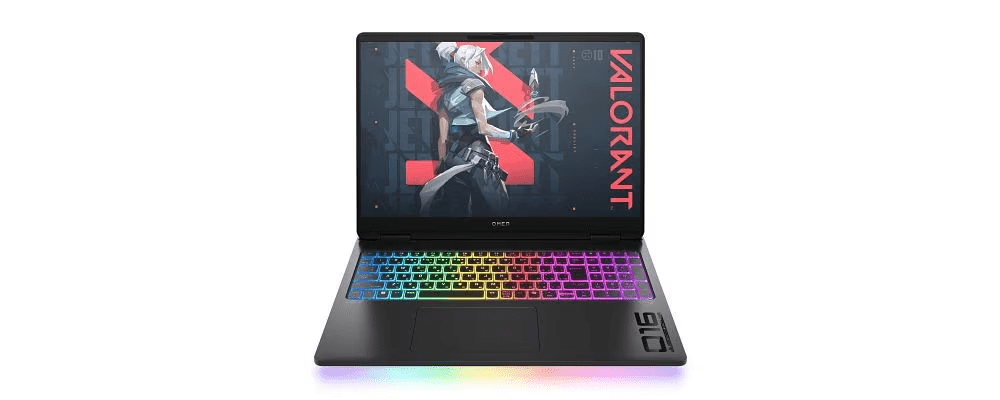
After the success of CS:GO, no one expected any other FPS game to be able to break the market, until VALORANT came on the scene. It has quickly become one of the most competitive tactical shooters in the esports landscape, with a thriving competitive scene across Australia and the broader Asia-Pacific region. Precision, reaction time, and split-second decision-making are crucial if you want to do well in the game. While your own skills are imperative, you still need the hardware to support your goals. With high frame rates, optimised peripherals, and reduced input lag, you can give yourself the competitive advantage that will take your skills to the next level.
This is where OMEN Gaming PCs come in, as they are built with superior performance in mind. We utilise advanced technologies and hardware to deliver reduced latency and consistently high FPS, pairing them with our OMEN Gaming Hub to extract every ounce of performance from your hardware. In this guide, we’ll learn how to optimise your setup with the best settings for VALORANT, utilising in-game configurations, GPU driver optimisations, system tweaks, and peripheral adjustments. So without further ado, let’s jump right in!
Contents
Why VALORANT Settings Matter for Competitive Play
In most competitive games, even the slightest advantage can make the difference between a clutch win and a frustrating loss. This edge can be gained by adjusting the in-game or hardware settings of your computer.
Here are a few desired effects that you should be looking for:
FPS Directly Impacts Aim and Reaction Time
For tactical shooters like VALORANT, FPS (Frames Per Second) is significantly more important compared to many other genres. This is because higher FPS delivers smoother animations, more responsive aiming, and better visibility. Shooters are also the only games where you can actively tell the difference between higher FPS, making it easier to execute your skills properly.
Lower Input Lag Means Faster Responses
Input lag refers to the delay that occurs between you clicking your mouse and seeing the action being performed on the screen. This delay is often not noticeable during normal day-to-day work but becomes extremely apparent during gameplay.
Visual Clarity vs. Raw Performance
Unlike most single-player games, cranking graphic settings up to “Ultra” in tactical shooters might not be the smartest decision, as it often lowers FPS. For competitive gaming, speed and clarity are of utmost importance; finding the right balance between cinematic visuals and performance is crucial. Turn down unnecessary eye candy while preserving crisp visuals for spotting enemies.
OMEN Hardware Requirements and Performance Expectations
Fortunately, VALORANT is extremely well-designed and performs exceptionally well on a wide range of hardware. This means that whether you have an entry-level OMEN Gaming Laptop or a high-end Gaming Desktop, you can get excellent performance without any significant issues.
Here’s a basic breakdown of the expected FPS you can get from OMEN hardware:
| Hardware Tier | GPU Example | Expected FPS |
|---|---|---|
|
Entry Level
|
GTX 1660 / RTX 3050
|
144–180 FPS
|
|
Mid Range
|
RTX 4060 / RTX 4060 Ti
|
200–300+ FPS
|
|
High-End
|
RTX 4080 / 4090 / 50 series
|
300+ FPS consistent
|
Complete VALORANT Settings Configuration
Now that we’ve determined the type of hardware you require, here are a few in-game settings that will complement your setup and ensure optimal FPS and clarity.
| Category | Settings | Reasons |
|---|---|---|
|
Display Mode
|
Fullscreen
|
Lesser input lag
|
|
Resolution
|
1920×1080 or 2560×1440
|
Ensured clarity
|
|
Limit FPS
|
Off / Uncapped
|
Artificial capping can cause a delay
|
|
NVIDIA Reflex
|
On + Boost (if GPU supports it)
|
Reduces system latency by coordinating CPU and GPU
|
|
Multithreaded Rendering
|
On
|
Makes use of your entire processor
|
|
Material Quality
|
Medium / Low
|
Unnecessary details don't impact gameplay
|
|
Texture Quality
|
Medium / Low
|
Helps with both clarity and performance
|
|
Detail Quality
|
Low
|
Reduces foliage and unnecessary visual elements
|
|
UI Quality
|
Low
|
Lower performance cost and a cleaner HUD
|
|
Vignette
|
Off
|
Reduces peripheral visibility
|
|
V-Sync
|
Off
|
Prevents input lag
|
|
Anti-Aliasing
|
MSAA 2x
|
Slight smoothing without performance costs
|
|
Anisotropic Filtering
|
4x
|
Helps textures
|
|
Improve Clarity
|
Off
|
Causes FPS spikes
|
|
Bloom
|
Off
|
Bloom adds glow effects that can mask contrast
|
|
Distortion
|
Off
|
Avoid warping or visual distortion
|
|
Cast Shadows
|
Off
|
Merely cosmetics that can affect performance
|
Audio Settings for Competitive Advantage
Here are a few additional audio settings that complement your visual settings for an optimal gaming experience:
-
Enable HRTF: This feature enables more precise spatial audio, allowing you to detect footsteps and maintain directional awareness.
-
Disable Music and Voicelines: Turn off voiceline and music volumes to avoid any unnecessary distractions.
-
Sound Effects: Helps you catch in-game cues and improve spatial awareness.
Graphics and Driver Optimisation
Now that we have everything else ready, it is time to move towards some additional optimisations that will bring out the best in your GPU. Most OMEN computers come with either an NVIDIA or an AMD GPU, so let’s take a closer look at how you can optimise both:
NVIDIA SYSTEMS
For NVIDIA systems, you should:
NVIDIA Control Panel:
-
Power Management: Set it up to maximum performance.
-
Low Latency Mode: Comes along with NVIDIA Reflex, which can be enabled in VALORANT.
-
Vertical Sync: Keep it off to avoid any screen tears or FPS drops.
AMD SYSTEMS
On the other hand, for AMD computers, here’s what you should do:
AMD Adrenaline:
-
Radeon Anti-Lag: This allows for quicker input responses.
-
Radeon Boost: This setting allows you to enable dynamic resolution scaling during fast motion.
-
Texture Filtering: Set the texture filtering to performance.
System and Performance Optimisation
After setting up the hardware and optimising all the game settings, we must now consider the system settings, including the Windows and network settings. Let’s look at what you should be setting up for the best VALORANT experience.
-
Windows Game Mode: Enabling this allows for the most optimal resource management.
-
Power Plans: Set the Windows power plans to “High Performance” or the equivalent plan for OMEN PCs.
-
Monitoring: Make use of OMEN Gaming Hub to keep track of latency and FPS in real-time.
-
Background Processes: Close any unnecessary background processes, such as browsers, updaters, or apps that may have launched.
Network Optimisation
For the network settings, make sure you have:
-
Wired Connection: It is always preferable to have a wired connection rather than Wi-Fi for consistent low ping.
-
OMEN Network Booster: Use the OMEN Network Booster to prioritise VALORANT over other applications and reduce packet loss.
-
Router Tweaks: Ensure that Quality of Service is enabled for improved gaming traffic.
Audio and Peripheral Settings
Finally, we reach the last step, which involves setting up the audio and peripherals that enhance the overall gaming experience and enjoyment. Ambiance is essential when you’re trying to zone into your gaming sessions, and here’s how you can get the best setup:
-
Audio Awareness: A good headset with surround sound or HRTP will ensure that you can pinpoint every footstep and have the directional awareness to be prepared.
-
Mouse DPI: We have found that a DPI range of 800-1600 is the most effective for aiming.
-
Mouse Acceleration: Disable mouse acceleration in the Windows mouse settings for optimal tracking.
-
Keybinds: Make sure to check if your keyboard is bound in a way that is the most comfortable for you.
-
RGB Profiles: You can utilise RGB profiles to highlight critical binds, making them more transparent and easier to locate.
-
Gaming Monitor: A good gaming monitor with high refresh rates and accurate colours.
Common Questions About VALORANT Settings
What are the best settings for VALORANT FPS optimisation?
The truth is, there isn’t a single “one-size-fits-all” answer, because the best settings depend on your hardware and monitor. That said, most competitive players follow the same principle: lower graphics for higher, more stable FPS. Turning off shadows, bloom, and distortion removes distractions while boosting performance.
Should I use stretched resolution on OMEN systems?
Some players swear by stretched resolutions, claiming they make enemies appear wider. The trade-off is that your visuals get distorted, which can hurt clarity and consistency over time. Since OMEN hardware already delivers excellent frame rates at native resolutions, you don’t need to sacrifice visual accuracy for higher frame rates.
Can OMEN laptops achieve 240+ FPS in VALORANT?
Yes, that’s one of the great things about VALORANT being so well optimised. A mid-tier OMEN laptop with an RTX 4060 or better can comfortably achieve 240 FPS, especially when using the recommended settings.
Parting Words
Winning in VALORANT comes down to awareness, speed, and precision, and with these settings, you’ll get access to all of them. By fine-tuning your OMEN Gaming PC with the proper settings based on your hardware, you will not only unlock higher FPS and lower latency but also have a more enjoyable time due to crisp timings. Whether you’re grinding ranked or preparing for esports competition, with these optimisations, you will have the performance edge you need.
Experience competitive gaming excellence with HP OMEN systems, engineered for esports precision and built for consistent high-FPS dominance.
Recent Posts





Popular Posts





Products purchased through this store are sold and fulfilled by Ingram Micro Pty Limited

CONTACT US
Call us
- Sales (Home, Students, Gamers)
- 1300 540 516
- Sales (Small Business Customers)
- 1800 891 209
- Post-Sales
- 13 23 47
- Technical support
- 13 10 47
Exc. public holidays
Chat with us
- Our specialist are here to help
- Live Product Demo
- Sales
- 61288061500 (WhatsApp)
-
- Post Sales
- 61288061700(WhatsApp)
- Technical Support
- 61341594000(WhatsApp)
Exc. public holidays
Live product demo
Submit feedback
We value your opinion!