Thank you for visiting the AUSTRALIA HP Store
-
Contact Us
CONTACT USCall us
- Sales (Home, Students, Gamers)
- 1300 540 516
- Sales (Small Business Customers)
- 1800 891 209
- Post-Sales
- 13 23 47
- Technical support
- 13 10 47
Exc. public holidays
Chat with us- Our specialist are here to help
- Live Product Demo
- Sales
- 61288061500 (WhatsApp)
-

- Post Sales
- 61288061700(WhatsApp)
- Technical Support
- 61341594000(WhatsApp)
Exc. public holidays
Live product demo
Submit feedback We value your opinion! - My Account

Search
Best Ways to Secure Your Home Network for Remote Work in 2026

Posted:
June 15, 2026
Categories:
Miscellaneous

Remote and hybrid work are a permanent part of 2026. That means home networks now handle company data, meetings, and credentials every day. A home Wi-Fi setup once only needed to support streaming. Now, it functions as an extension of the workplace.
This guide explains practical ways to secure your home network. We'll focus on actionable steps, organized by difficulty, to help you strengthen your home network without adding complexity.
The majority of improvements use built-in features or free tools, so you can get started immediately.
Contents
- Why Home Network Security Matters More in 2026
- Understanding Your Home Network (Quick Primer)
- Quick Wins: Essential Security Steps (30 Minutes)
- Intermediate Security: Network Segmentation (2 Hours)
- Intermediate Security: VPN Setup for Remote Work
- Intermediate Security: Advanced Password Practices
- Advanced Security: Ongoing Maintenance (Weekly/Monthly Tasks)
- IoT Device Security in 2026
- Troubleshooting common concerns
- Router Configuration Checklist
- When to Upgrade Your Router
- Common Questions about Home Network Security for Remote Work (FAQ)
- Conclusion
Why Home Network Security Matters More in 2026
Typical households now include laptops, phones, TVs, smart speakers, cameras, and other IoT devices. The growth of these devices expands the attack surface and increases the odds that something unpatched, insecure, or rarely monitored becomes an entry point.
At the same time, attackers are using AI to craft more convincing phishing messages and credential theft attempts. Instead of aiming at corporate firewalls, they often target remote workers at home where router configurations and password habits vary widely.
There’s been an increase in cases where compromised home Wi-Fi or stolen credentials allowed attackers to access corporate VPNs or cloud apps. One of the recent breaches from July 2025 included a BadBox 2.0 botnet that infected over 10 million IoT devices.
In these scenarios, home network security became the weakest link.
Understanding Your Home Network (Quick Primer)
A basic home network has three parts:
-
Modem: Connects your home to the internet through your ISP
-
Router: Creates your private network, assigns IP addresses, and provides Wi-Fi
-
Devices: Laptops, phones, TVs, and IoT gadgets that connect through the router
You’ll see a few technical terms throughout this guide, so here’s a quick glossary:
-
SSID: Your Wi-Fi network name
-
WPA3: The current Wi-Fi security standard that encrypts wireless traffic
-
WPS: A “push-button” or PIN method for joining Wi-Fi; convenient but insecure
-
Firmware: The router’s operating software that controls features and security
-
VPN: A Virtual Private Network that encrypts your internet traffic end-to-end
-
IoT: Internet of Things devices like smart speakers, TVs, cameras, and appliances
Before applying fixes, do a 60-second baseline check:
-
Can you log in to your router
-
Are you using WPA3 or WPA2
-
Is the admin password still the default
-
Do you have a guest network enabled
-
How many devices are currently connected
If you’re unsure about most of these, the quick wins below will make an immediate difference.
Quick Wins: Essential Security Steps (30 Minutes)
These settings take minutes and significantly improve your cybersecurity.
Change the router’s admin login
Log in to your router console (often 192.168.0.1 or 192.168.1.1), go to Administration, and change both the username (if available) and password.
Default credentials are widely known and easily exploited.
Enable WPA3
Go to Wireless Settings and set Security Mode = WPA3-Personal. If you have older devices that can’t join, use WPA2/WPA3 Mixed Mode until you upgrade them.
Disable WPS
WPS makes joining Wi-Fi easier but can be brute-forced via its PIN method. Disable it under Advanced Wireless or WPS Settings.
Update router firmware
Under Firmware Update or Advanced, apply any updates. Many modern routers support auto-updates, so enable this if available.
Enable the router firewall
Look under Security or Firewall and ensure it is turned on. This blocks unsolicited inbound traffic.
Hide SSID broadcast
Disabling SSID broadcast removes your Wi-Fi name from casual scans. It won’t stop determined attackers, but it reduces visibility in dense neighborhoods.
Intermediate Security: Network Segmentation (2 Hours)
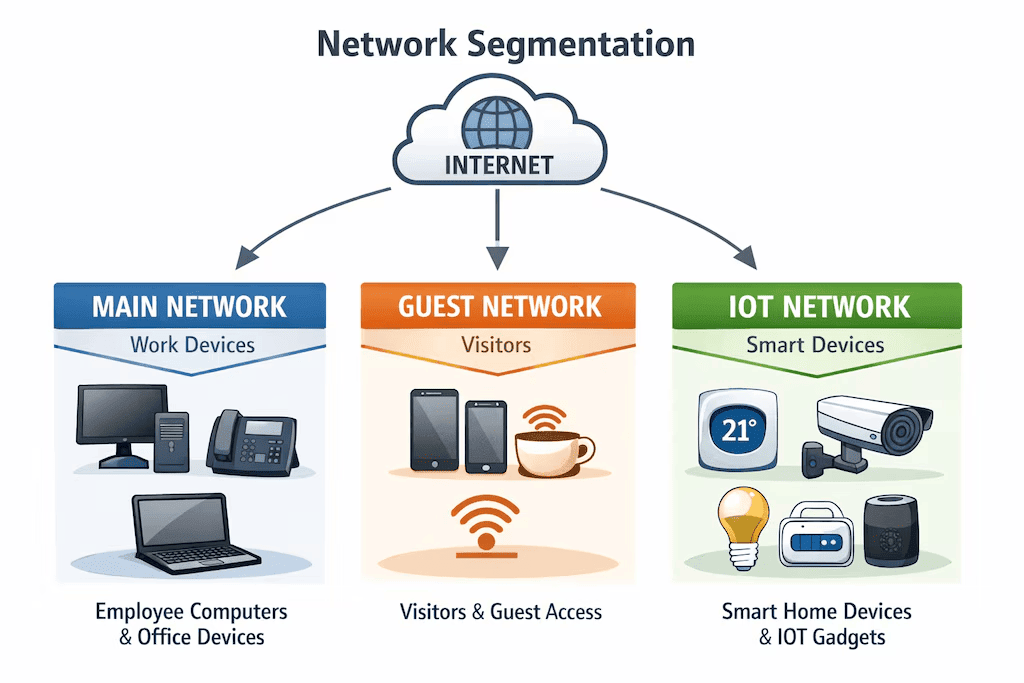
Segmentation separates work devices from IoT and guest devices. This prevents an insecure smart TV or a child’s tablet from becoming a bridge to your work laptop.
A simple three-network model works for most homes:
-
Main: Work laptop, personal computers, phones
-
Guest: Visitors’ devices
-
IoT: TVs, speakers, cameras, appliances
How to set it up:
-
Log in to your router.
-
Create a Guest network (SSID + password).
-
Move all IoT devices to that network.
-
Ensure Guest Isolation is enabled if offered.
-
Keep work devices on the Main network only.
Device placement tip:
If a device does not require file sharing or local network access (for example, a streaming TV), it belongs on the IoT network. Only keep truly trusted endpoints (usually laptops and phones) on the Main network.
Intermediate Security: VPN Setup for Remote Work
A Virtual Private Network (VPN) creates an encrypted tunnel between your device and the internet. Your internet traffic becomes unreadable to anyone snooping on the connection, including coffee shop Wi-Fi owners, hotels, or malicious actors on shared networks.
For remote workers, this matters because you often sign in to email, cloud drives, CRMs, or dashboards that contain sensitive data. Without a VPN, that traffic may travel in the open.
Free vs paid VPNs
Free VPNs often monetize by collecting data or injecting ads. Some throttle speeds or have weak encryption.
Paid VPNs fund themselves through subscriptions, offer clear privacy policies, and include features like kill switches, multi-hop routing, and audited no-log policies.
Expect quality paid options around $5–$8/month, sometimes less with annual plans.
VPN setup options
There are two common ways to deploy VPNs:
-
Device-level VPN (most common): Install an app on your laptop, phone, or tablet. Toggle it on when working remotely. This is simplest and works for most people.
-
Router-level VPN (work-from-home setups): Configuring your home router to connect through a VPN protects every device on your network automatically. This requires a compatible router (e.g., certain ASUS models or routers running OpenWRT/DD-WRT).
When to use a VPN for work
Use it when:
-
On public Wi-Fi (cafes, airports, hotels)
-
On shared networks (co-working spaces, Airbnbs)
-
Accessing internal corporate resources remotely
-
Handling documents, credentials, or client data outside home
You don’t need a VPN for every streaming session at home, but for work context, a secure home network is worth the small subscription cost.
Intermediate Security: Advanced Password Practices
Passwords are the weak link in most attacks. The issue is reusing passwords across multiple services. If one gets breached, attackers try the same credentials everywhere else.
Password managers
A password manager stores strong, unique passwords for every site you use, protected by one master password. Recommended free-first options:
-
Bitwarden (open-source, excellent free tier)
-
KeePassXC (local, technical users)
Premium options with cloud sync and family plans:
-
1Password
-
Dashlane
-
NordPass
Setup is straightforward. Install the extension/app, import or add logins, and let it generate new unique passwords going forward.
Unique password generation
Password managers can create 20–30 character random passwords instantly. If a single site is breached, only that site is compromised.
Two-factor authentication (2FA)
2FA adds a second step at login. The order of strength:
-
Authenticator apps (Authy, Aegis, Microsoft/Google Authenticator)
-
Security keys (YubiKey, SoloKey)
-
SMS codes (better than nothing, but vulnerable to SIM swaps)
For work accounts, authenticator apps or keys are strongly preferred.
Device-specific password security
A strong system password on laptops/phones prevents physical compromise. Enable:
-
Device encryption (Windows: BitLocker, macOS: FileVault, Android/iOS: default)
-
Auto-lock timers (screens shouldn’t stay open indefinitely)
With these practices, a lost phone or laptop becomes an inconvenience, not a security catastrophe.
Combined with hardware-level threat containment solutions like HP Wolf Security, this mitigates damage even further by limiting what happens if malicious files or compromised websites reach the device.
Advanced Security: Ongoing Maintenance (Weekly/Monthly Tasks)
Security isn’t one-and-done. Occasional light maintenance keeps things stable.
Weekly (5 minutes)
-
Apply pending OS/browser updates
-
Check router for unknown devices
-
Review recent login alerts
Monthly (10–15 minutes)
-
Update router/IoT firmware
-
Remove old user access (ex-employees, guests, freelancers)
-
Review device inventory (remove abandoned devices)
-
Check network activity for anything unusual
Twice a year, do a small “audit”. Confirm 2FA on important accounts, clean up password vault entries, revoke old app permissions, and update devices that fell behind.
IoT Device Security in 2026
Smart devices add convenience but increase attack surface. The main risks are default passwords, outdated firmware, and excessive data collection.
Minimum safeguards:
-
Change default passwords immediately
-
Put IoT on a separate network/SSID
-
Apply updates quarterly (or when prompted)
-
Disconnect devices you no longer use
Most IoT doesn’t need access to your work laptop, cloud drives, or emails. Segmentation keeps IoT compromises isolated instead of catastrophic.
Troubleshooting common concerns
Will this slow my internet?
VPNs can add small latency, but good providers keep speeds high. Router security has no meaningful speed penalty.
Can I still use smart home devices?
Yes. Most work fine on a separate SSID. Voice assistants may need limited local access, which modern routers support.
What if I break router settings?
Use the reset button. Worst case, you re-enter Wi-Fi names and passwords.
How do I know it’s working?
No unknown devices on Wi-Fi, fewer suspicious login attempts, updates run smoothly.
Is this overkill?
Match to your risk. If you handle sensitive work on public Wi-Fi, these steps are baseline. For purely home browsing, scale down.
Router Configuration Checklist
Quick-reference items you can actually implement:
Essential (10–15 minutes)
-
Change default admin password
-
Enable WPA3 (or WPA2 if legacy devices require it)
-
Disable WPS
-
Create separate SSID for IoT/Guests
-
Enable automatic firmware updates (if supported)
Recommended (10 minutes)
-
Disable remote admin access (unless truly needed)
-
Disable UPnP (unless specific services require it)
-
Limit DHCP range to expected number of devices
-
Review connected devices list monthly
Optional (variable)
-
DNS filtering or custom DNS (Quad9, Cloudflare)
-
VLANs for tighter segmentation (advanced users)
-
Log notifications for new device joins
Total setup time for most households: 25–35 minutes. For workplaces: ~45–60 minutes.
When to Upgrade Your Router
Routers age out in three main ways: security, firmware support, and radio performance.
Signs yours is inadequate
-
No WPA3 support
-
Firmware hasn’t updated in over 12 months
-
Random disconnects or chronic slowdowns
-
Limited security settings (no guest SSID, no DNS control, no logs)
-
Only 2.4 GHz band (no 5 GHz or 6 GHz)
Security features worth having in 2026 routers
-
WPA3 Personal (required baseline)
-
Auto firmware updates
-
Guest + IoT SSIDs
-
Basic traffic visibility/logging
-
DNS control and optional filtering
-
Mesh compatibility
Mesh systems are recommended for houses over ~1500 sq ft or with multiple floors. Mesh improves coverage and keeps all clients under one managed security configuration.
Common Questions about Home Network Security for Remote Work (FAQ)
Do I need enterprise-grade equipment?
No. Modern consumer/SMB routers provide strong security without complexity.
Can my employer see everything I do at home?
No, unless you use a corporate-managed VPN/device. Your home router doesn’t grant visibility to employers.
What's the minimum setup for remote work network security?
WPA3/WPA2, strong router admin password, separate SSID for IoT/Guests, VPN on public Wi-Fi, and 2FA for work accounts.
How often should I change my Wi-Fi password?
Only when exposure risk exists: after roommates move out, devices are lost, or unknown clients appear.
Are public Wi-Fi networks ever safe for work?
Only with a VPN + 2FA and encrypted services. Raw public Wi-Fi should be treated as hostile.
Conclusion
A secure home setup doesn’t require enterprise hardware or weeks of tuning. The three-tier approach keeps it manageable:
-
Quick Wins (fast, free, high-impact)
-
Intermediate (VPN, password practices, segmentation)
-
Advanced (ongoing maintenance and router hardening)
Most of the protection comes from the first tier and takes less than an hour to apply. The rest can be layered over time without disrupting how you work.
Start with the Quick Wins today, then build upward as needed instead of waiting for a “perfect” setup.
Recent Posts





Popular Posts






Products purchased through this store are sold and fulfilled by Ingram Micro Pty Limited

CONTACT US
Call us
- Sales (Home, Students, Gamers)
- 1300 540 516
- Sales (Small Business Customers)
- 1800 891 209
- Post-Sales
- 13 23 47
- Technical support
- 13 10 47
Exc. public holidays
Chat with us
- Our specialist are here to help
- Live Product Demo
- Sales
- 61288061500 (WhatsApp)
-
- Post Sales
- 61288061700(WhatsApp)
- Technical Support
- 61341594000(WhatsApp)
Exc. public holidays
Live product demo
Submit feedback
We value your opinion!