Thank you for visiting the AUSTRALIA HP Store
-
Contact Us
CONTACT USCall us
- Sales (Home, Students, Gamers)
- 1300 540 516
- Sales (Small Business Customers)
- 1800 891 209
- Post-Sales
- 13 23 47
- Technical support
- 13 10 47
Exc. public holidays
Chat with us- Our specialist are here to help
- Live Product Demo
- Sales
- 61288061500 (WhatsApp)
-
- Post Sales
- 61288061700(WhatsApp)
- Technical Support
- 61341594000(WhatsApp)
Exc. public holidays
Live product demo
Submit feedback We value your opinion! - My Account

Search
Life Proof Tech: How to Childproof a Laptop or Tablet Safely

Posted:
February 07, 2026
Categories:
Laptops
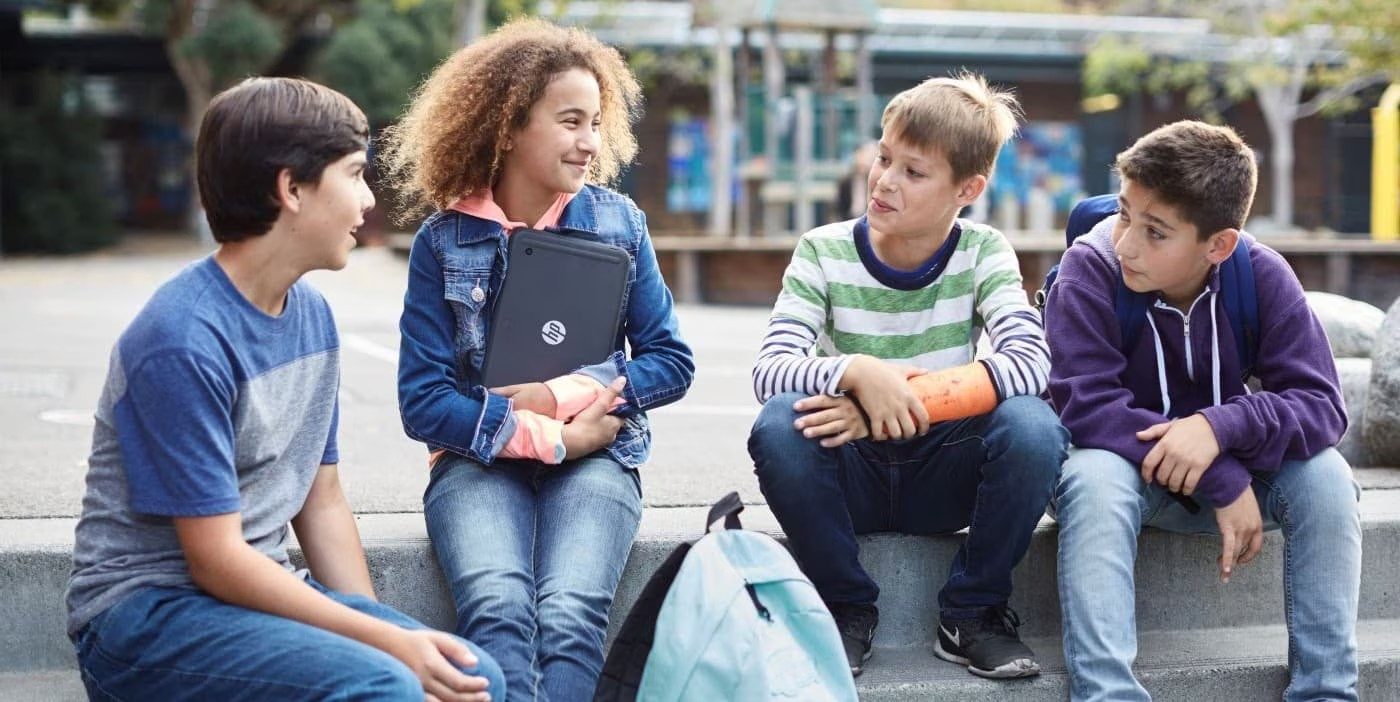
⚡ Quick Answer: Childproof your laptop or tablet by combining physical protection (cases, screen protectors, keyboard covers) with digital safeguards (Microsoft Family Safety for Windows, Google Family Link for Chromebooks, Screen Time for iOS) to prevent damage, manage screen time, and ensure safe browsing.
Imagine this: You give your laptop to your seven-year-old for a maths game, but when you return, there’s a new game installed, your desktop is disorganised, and a sticky fingerprint smudges the webcam. Or perhaps your toddler uses your tablet as a temporary dinner tray. If these scenarios sound familiar, you’re not alone. For Australian families navigating the digital landscape, the critical question is: How can you make a laptop or tablet both safe for children and durable enough for daily use?
As parents, we want to protect our investment in technology whilst keeping our children safe online. This guide explores practical ways to childproof laptops and tablets, blending physical protection with digital safety. We’ll highlight solutions using trusted partners like Intel, Nvidia, Chromebook, Adobe, Microsoft, AMD, and Bose to ensure you have access to the best tools for the job.
The goal isn’t to limit children—it’s to prepare them for secure, healthy engagement with technology. Let’s explore how to create a setup that provides peace of mind for everyone involved.
Contents
- Why Childproofing Your Devices Matters
- Physical Protection: Safeguarding Devices from Damage
- Setting Up Parental Controls: Step-by-Step Guide
- Creating Safe Browsing Environments
- Preventing Accidental Purchases and Downloads
- Managing Multiple Children on Shared Devices
- Understanding Australian Privacy and Safety Regulations
- Best Practices for Digital Parenting
- Common Questions About Childproofing Devices
- Adapting Controls for Different Australian Climates and Environments
- Supporting Distance Education and Remote Learning
- Conclusion
Why Childproofing Your Devices Matters
Childproofing isn’t based on anxiety—it’s about preparedness. Today, Australian children increasingly use laptops and tablets for online education, entertainment, and creative tools like Adobe apps and kid-friendly Chromebooks. Parents now face four main concerns:
Device Protection
Repairing a cracked screen or water-damaged motherboard can be expensive. Even durable devices like HP Chromebooks, which withstand classroom drops, benefit from extra protection at home where spills and falls are more likely. Whether you’re in Sydney, Melbourne, Brisbane, or Perth, protecting your technology investment makes financial sense, particularly during the summer months when kids spend more time at home.
Online Safety
Children today face digital risks earlier than ever, including exposure to inappropriate content, unsafe search results, phishing attempts, and contact from strangers. Parental control tools such as Microsoft Family Safety, Google Family Link, and McAfee features help Australian parents monitor activity and set safeguards that comply with local privacy considerations.
Preventing Accidental Purchases
Many families discover the importance of controls after kids make in-app purchases, download paid apps, or start recurring subscriptions by mistake. With Australian dollar conversions and regional pricing, these costs can add up quickly. Setting up restrictions can prevent these costly surprises.
Managing Screen Time
Experts recommend balancing quality screen use with healthy offline activities. Built-in controls on Windows, Chromebooks, Android tablets, and iPads allow parents to set reasonable limits that accommodate school requirements, homework sessions, and recreational use.
Research shows that a large majority of parents have dealt with a child damaging a device, and a similar number have experienced accidental purchases or unsafe online navigation. Childproofing technology helps minimise these issues and encourages safe, confident digital exploration.
Physical Protection: Safeguarding Devices from Damage
Whilst keeping kids safe online is important, protecting your laptop or tablet from physical damage is equally essential. Physical protection is the first layer of defence, particularly important in Australian homes where devices might travel between air-conditioned interiors and hot outdoor areas.
Essential Protective Accessories
Cases: Choose drop-resistant or military-grade cases for tablets. Many HP laptops and tablets and Chromebooks are compatible with sturdy shock-absorbing shells that provide excellent protection.
Screen Protectors: Tempered glass or high-quality plastic protectors shield your screen from scratches, scribbles, and impact. These are particularly valuable in coastal areas where sand and salt exposure can damage unprotected screens.
Keyboard Covers: Essential for younger children—protects against crumbs, spills, and eager fingers pressing too hard. Available through HP accessories, these covers maintain hygiene whilst extending keyboard lifespan.
Padded Sleeves: If your child carries devices around the house or in a backpack, padded sleeves reduce drop risk and protect corners. Consider the Australian climate when choosing materials—breathable fabrics prevent moisture buildup during humid summer months.
Corner Bumpers: Small add-ons for tablets that make a surprising difference when handled by toddlers or younger kids.
Environmental Setup
When setting up your home for children’s device usage:
-
Establish safe usage areas like a well-lit table or desk away from windows that receive intense afternoon sun
-
Avoid unstable surfaces—younger children should avoid using laptops on beds or couches where devices may slide
-
Create a secure charging station to maintain organisation and prevent tripping hazards, ensuring proper ventilation for Australian summer temperatures
-
Teach proper handling—children should grip laptops with both hands, close lids carefully, and avoid carrying laptops by the display
-
Arrange kid-friendly spaces with smaller seats, uncluttered surfaces, and accessible adult oversight
Consider dust management, particularly relevant in inland Australian regions where dust intrusion can affect device performance. Regular cleaning routines help maintain device longevity.
Setting Up Parental Controls: Step-by-Step Guide
Digital safeguards are the heart of a childproof laptop setup. They establish healthy boundaries, protect your child from inappropriate or unsafe content, and prevent accidental purchases.
Here are clear, parent-friendly steps for the most common platforms:
Windows Parental Controls (Microsoft Family Safety)
Create a child account:
Sign in to your Microsoft account on the laptop, then add a child account under Family & Online Safety. This creates a protected environment with age-appropriate defaults.
Set screen time limits:
Schedule daily usage windows or total hours. For example, younger kids might get one hour per day, whilst older children get more flexibility. Consider coordinating limits with school requirements and homework schedules.
Restrict apps and games:
Block apps not meant for younger children or require approval before download. This is particularly useful for managing access to games with age classifications from the Australian Classification Board.
Enable web filtering and SafeSearch:
Microsoft Family Safety automatically filters adult content and unsafe websites. You can also create “allowed site” lists for younger kids, ensuring they access only Australian educational resources and approved content.
View activity reports:
These reports show searches, app usage, and browsing patterns, helping you understand how your child interacts with the device. Regular reviews help Australian parents stay informed about their children’s digital habits.
Windows parental controls are robust, intuitive, and deeply integrated with Microsoft 365 tools, making them a strong option for parents who want visibility without micromanagement.
Chromebook Parental Controls (Google Family Link)
Chromebooks are a popular choice for children’s learning. They offer excellent security, automatic updates, and reliable performance with Intel and AMD processors. Google Family Link provides a straightforward way to add parental supervision.
Set up supervised users:
Add your child’s Google account and link it to your Family Link app.
Manage Chrome restrictions:
Enable SafeSearch, block certain websites, or allow only sites you approve. This helps ensure children access appropriate Australian content and educational resources.
Control Android app permissions:
Maintain control over what your child accesses, whether creative work through Adobe Express or learning via educational apps from Google Play.
Set screen time and bedtime:
Family Link lets you limit usage based on age, routines, and agreements you’ve made with your child. Adjust settings to accommodate Australian school terms and holiday periods.
Use remote management:
Parents can lock devices, approve downloads, or adjust settings from their own phone, providing flexibility for busy Australian families balancing work and parenting responsibilities.
Family Link’s design makes it ideal for less tech-savvy parents who want something simple, mobile-friendly, and effective.
Additional Platform Controls
iOS/iPadOS Screen Time:
Screen Time offers families using Apple tablets these features:
-
App usage limitations
-
Scheduled downtime
-
Content filtering coordinated with Australian time zones
-
Communication restrictions
It’s particularly helpful for younger kids who rely on tablets for educational content.
Android Family Link (Tablets + Phones):
Android tablets use the Family Link ecosystem much like Chromebooks, letting you control screen time, block purchases, and manage applications. The process is straightforward:
-
Connect your child’s account
-
Set your desired restrictions
-
Monitor device activity
Creating Safe Browsing Environments
After establishing core controls, refine the browsing experience to ensure your child is exposed only to age-appropriate material.
Browser Safety Settings
-
Enable safe search on Google, Bing (Microsoft-powered), and YouTube to filter Australian and international content appropriately
-
Install kid-friendly extensions for additional filtering
-
Block websites manually or create an approved site list for very young users, focusing on trusted Australian educational sites
These settings help prevent accidental exposure to mature content even if your child types something unexpected in the search bar.
Kid-Friendly Content Platforms
YouTube Kids: Provides curated, age-appropriate videos with strong parental settings and localised Australian content.
Educational apps: Tools like Adobe Express for students encourage creativity in safe environments.
Curated services: Many streaming and learning platforms offer kids-only modes that filter out adult-themed content whilst providing access to Australian educational programming and entertainment.
These options keep screens purposeful and positive, supporting learning outcomes aligned with the Australian curriculum.
Preventing Accidental Purchases and Downloads
Accidental purchases are amongst the most common parent concerns. Most platforms offer straightforward protections:
-
Require a password for all purchases to disable one-click buying
-
Password-protect access to app stores (available on both Windows and Google Play)
-
Use purchase approval workflows made easy by tools like Family Link and Family Safety
-
Restrict in-app purchases—particularly helpful for families whose children enjoy mobile games
-
Limit or remove stored payment methods to add an extra security layer, preventing unexpected charges in Australian dollars
It’s also important to teach children about responsible digital spending. Kids often respond positively to clear explanations framed as responsibility rather than punishment. These steps protect not just your device but also your wallet, particularly during EOFY sales periods when promotional offers might tempt unauthorised purchases.
Managing Multiple Children on Shared Devices
When siblings share a device, managing fairness, screen time, and content can feel overwhelming. Separate profiles help restore order.
Create individual user accounts:
Each child has personalised settings, screen time limits, and app permissions.
Age-appropriate restrictions:
Preschoolers, early primary students, and preteens all need different boundaries that reflect Australian educational stages and developmental needs.
Easy profile switching:
Both Windows laptops and Chromebooks support quick switching, making transitions smooth between homework, recreational time, and different family members.
Clear expectations:
Kids understand that each account belongs to its user, creating a sense of ownership and responsibility. This approach works well in Australian households where multiple children might share devices for distance education or remote learning scenarios.
Understanding Australian Privacy and Safety Regulations
Australian families benefit from understanding local privacy frameworks that protect children online. The Australian Communications and Media Authority (ACMA) provides guidelines for online safety, whilst the eSafety Commissioner offers resources specifically designed for Australian parents and educators.
Key Considerations for Australian Families
Privacy protection: Ensure parental control tools comply with Australian privacy standards when collecting data about children’s online activities.
Age verification: Many platforms now implement age verification systems aligned with Australian regulations, providing additional safeguards for young users.
Reporting mechanisms: Familiarise yourself with Australian reporting channels for cyberbullying, inappropriate content, or online safety concerns through the eSafety Commissioner’s website.
Educational resources: Access Australian-specific digital literacy programs that complement parental controls, helping children develop critical thinking skills for online navigation.
Best Practices for Digital Parenting
Childproofing tools offer helpful layers of protection, but the foundation of digital safety lies in ongoing conversations and demonstrating healthy technology habits.
Create family tech rules together: Kids who help make rules are more likely to follow them. Consider Australian contexts like school requirements, NBN connectivity limitations, and family schedules.
Observe age-appropriate screen time limits: Shorter sessions for younger children and more mindful use for older kids, balancing outdoor activities particularly important in Australia’s climate.
Regular check-ins: Talk about what your child is watching or playing—sometimes join them to maintain open communication about Australian and international content.
Teach digital citizenship: Emphasise online kindness, privacy, and respectful communication with the same importance as these qualities in real-life interactions, preparing children for Australia’s diverse digital community.
Balance supervision and independence: Younger children need clear boundaries, whilst older children benefit from growing autonomy as they progress through primary and secondary education.
Adjust as they grow: Parental controls and settings should evolve to match your child’s developing skills and needs, transitioning through Australian educational milestones.
Technology reinforces values: It should support your family’s values rather than replace them, offering a safe framework where those values can thrive within Australian cultural contexts.
Common Questions About Childproofing Devices
At what age should I set up parental controls?
Most experts suggest setting controls from the moment a child uses a device, especially for kids under 10. Adjust settings as they grow through Australian primary school years.
Can children bypass parental controls?
Some tech-savvy preteens may try. Strong passwords, supervised accounts, and regular communication reduce that risk. Australian parents should maintain open dialogue about why controls exist.
How do I prevent accidental purchases?
Disable automatic purchasing, require a PIN for downloads, and avoid saving payment methods on shared devices. This is particularly important with Australian dollar pricing and regional app store offerings.
Should I monitor my child’s device activity?
Monitoring can be helpful, but it works best alongside open conversations so kids understand the “why.” Balance oversight with age-appropriate privacy as children mature through Australian school years.
What’s the difference between Windows and Chromebook controls?
Windows uses Microsoft Family Safety, whilst Chromebooks rely on Google Family Link. Both offer screen time limits, app filters, and safe browsing features, but Family Link is often more intuitive for beginners.
How do Australian internet speeds affect parental controls?
NBN connectivity varies across regions. Ensure parental control settings account for bandwidth limitations, particularly in regional areas where slower connections might affect content filtering responsiveness.
Adapting Controls for Different Australian Climates and Environments
Australia’s diverse climate presents unique challenges for device protection. Understanding regional considerations helps maintain device integrity:
Tropical regions (Far North Queensland, Northern Territory): High humidity requires additional moisture protection. Use silica gel packets near charging stations and ensure cases provide adequate ventilation whilst protecting against moisture ingress.
Coastal areas (Sydney, Melbourne, Perth coastal suburbs): Salt air can corrode ports and connectors. Regular cleaning with appropriate materials prevents buildup, whilst protective covers shield vulnerable connection points.
Inland and outback regions: Dust management becomes critical. Keyboard covers prevent particle intrusion, whilst regular compressed air cleaning maintains functionality in dusty environments from regional NSW to Western Australia’s interior.
Urban centres with temperature extremes: Melbourne’s variable weather or Sydney’s summer heat requires careful device placement. Avoid direct sunlight exposure, particularly during Australian summer months when temperatures exceed 35°C.
Supporting Distance Education and Remote Learning
Australian families, particularly those in regional and remote areas, increasingly rely on devices for distance education. Childproofing strategies should accommodate these unique requirements:
School connectivity requirements: Coordinate parental controls with school portal access, ensuring students can reach educational platforms whilst maintaining appropriate restrictions on recreational content.
Homework time management: Set screen time allowances that separate educational use from entertainment, recognising the extended device usage required for Australian distance education programs.
Technical support access: Ensure parental controls don’t inadvertently block access to school IT support resources or video conferencing platforms essential for remote learning participation.
Backup options: Rural Australian families should consider offline educational content options for periods when NBN connectivity issues affect remote learning capabilities.
Conclusion
Creating a child-safe environment on a laptop or tablet might seem daunting at first, but combining physical protections with digital controls provides the right balance for Australian families. The goal isn’t to limit curiosity—it’s to channel it safely through Australia’s unique digital landscape. Begin with basic protective tools suitable for your climate region, set up platform-specific parental controls aligned with Australian educational requirements, and build healthy tech habits together. As your child grows through Australian school years, their digital world will grow with them, and you’ll be ready to guide them confidently at every stage.
Whether you’re navigating distance education in regional Queensland, managing multiple children on shared devices in Melbourne, or balancing screen time with outdoor activities in Perth, these childproofing strategies provide the foundation for safe, productive technology use. Australian families can create digital environments that protect devices, ensure online safety, and foster responsible technology habits that will serve children throughout their educational journey and beyond.
Explore HP laptops and Chromebooks built with families in mind, offering sturdy build quality, intelligent security features, and user-friendly parental controls suitable for Australian households.
Recent Posts

Popular Posts





Products purchased through this store are sold and fulfilled by Ingram Micro Pty Limited

CONTACT US
Call us
- Sales (Home, Students, Gamers)
- 1300 540 516
- Sales (Small Business Customers)
- 1800 891 209
- Post-Sales
- 13 23 47
- Technical support
- 13 10 47
Exc. public holidays
Chat with us
- Our specialist are here to help
- Live Product Demo
- Sales
- 61288061500 (WhatsApp)
-
- Post Sales
- 61288061700(WhatsApp)
- Technical Support
- 61341594000(WhatsApp)
Exc. public holidays
Live product demo
Submit feedback
We value your opinion!