Thank you for visiting the AUSTRALIA HP Store
-
Contact Us
CONTACT USCall us
- Sales
- 1300 540 516
- Technical support
- 13 23 47
Exc. public holidays
Chat with us- Our specialist are here to help
- Live Product Demo
- Sales
- 61288061500 (WhatsApp)
-

- Post Sales
- 61288061700(WhatsApp)
Exc. public holidays
Live product demo
Submit feedback We value your opinion! - My Account

Search
How to Get Your HP Laptop Camera Working on Zoom: Complete Troubleshooting Guide for Australians

Posted:
August 20, 2025
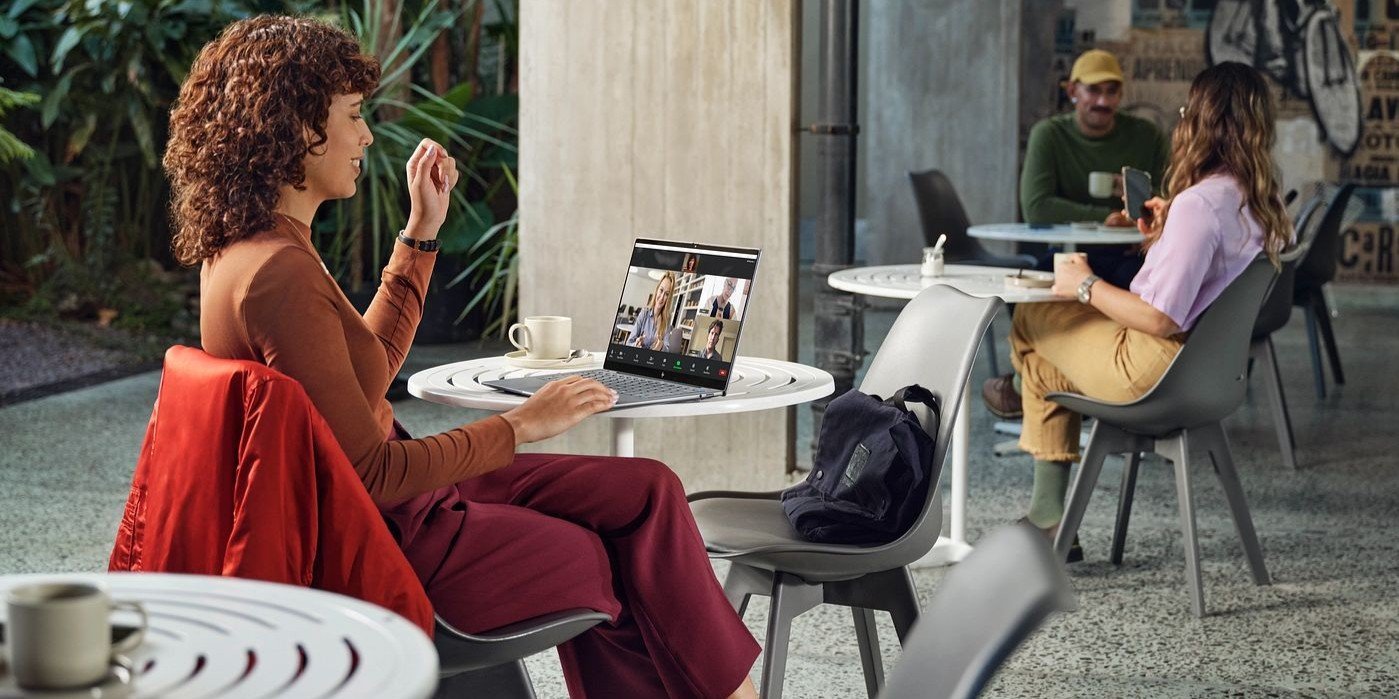
Remote work and online learning have become integral to Australian life, making video call malfunctions particularly frustrating when they occur just before important Zoom meetings or virtual classes. Whether you’re joining a meeting from your Melbourne office or attending online uni lectures from Perth, camera issues can disrupt your day.
If your HP laptop camera suddenly stops working with Zoom, you’re not alone—this is one of the most common technical issues users face across Australia. The good news is that most HP laptop camera problems can be resolved quickly without advanced technical expertise. Whether it’s a simple privacy setting, outdated driver, or Zoom configuration issue, this comprehensive guide will walk you through proven solutions to get your camera working smoothly again.
Quick Fix Success Rate: Over 80% of HP laptop camera issues are resolved through the first five troubleshooting steps outlined below, typically taking less than 10 minutes to complete.
Contents
- Immediate Quick Fixes (Try These First)
- HP Camera Driver Solutions
- Windows Camera Settings Troubleshooting
- Zoom-Specific Troubleshooting
- Hardware Diagnostics and Issues
- Advanced Troubleshooting Options
- Preventative Measures and Best Practices
- Enhancing Your Video Call Setup
- Troubleshooting Quick Reference
- Professional Support Options for Australian Users
- Conclusion: Restoring Camera Functionality
Immediate Quick Fixes (Try These First)
Start with These Simple Solutions
Before diving into complex troubleshooting, these quick fixes resolve the majority of HP laptop camera issues with Zoom. For Australian users working across different time zones for international meetings, these rapid solutions can save precious time.
1. Check Physical Camera Privacy Controls
Physical Privacy Shutters: Many modern HP laptops feature physical camera covers or privacy shutters—small sliders located near the webcam lens. Ensure the shutter is open and not obstructing the camera.
LED Indicator Check: Look for a small LED light near your camera. If it’s not illuminating when you attempt to use the camera, this indicates a hardware or driver issue.
2. Verify Zoom Camera Settings
Camera Selection Process:
-
Open Zoom and navigate to Settings > Video
-
Click the dropdown next to “Select a Camera”
-
Choose your HP webcam (typically labelled “HP Wide Vision Camera” or “Integrated Webcam”)
-
Confirm video preview appears in the settings window
3. Application Reset Solutions
Quick Application Fixes:
-
Restart Zoom: Close completely and reopen the application
-
Reboot Laptop: The universal IT solution that resolves temporary software conflicts
-
Test Alternative Apps: Open Windows Camera app to verify if the issue is Zoom-specific or system-wide
4. Windows Privacy Permission Check
Ensuring Camera Access:
-
Navigate to Settings > Privacy & Security > Camera
-
Enable “Camera access”
-
Turn on “Let apps access your camera”
-
Verify Zoom is listed and enabled in the app permissions
Pro Tip: If using Zoom in a web browser, check camera permissions in the browser settings (usually found by clicking the lock icon in the address bar).
HP Camera Driver Solutions
Resolving Driver-Related Issues
Outdated or corrupted camera drivers are amongst the most common causes of webcam malfunctions on HP laptops. Australian users should regularly update drivers to ensure compatibility with local network configurations and software versions.
Using HP Support Assistant (Recommended Method)
Automatic Driver Updates:
-
Search for “HP Support Assistant” in Windows search
-
Open the application and allow device access if prompted
-
Select “My Devices” and choose your laptop
-
Navigate to Updates section for automatic driver scanning
-
Install recommended camera driver updates and restart when prompted
Manual Driver Installation
For Advanced Users:
-
Visit HP Support website and select Australia region
-
Enter your laptop’s serial number or allow HP to detect your product
-
Locate camera drivers in Driver-Graphics or Driver-Webcam sections
-
Download compatible driver for your Windows version
-
Install and restart your laptop
Clean Driver Reinstallation
When Updates Don’t Work:
-
Open Device Manager (right-click Start button)
-
Expand “Cameras” or “Imaging Devices” section
-
Right-click your webcam (e.g., “HP Wide Vision Camera”)
-
Select “Uninstall device” and tick “remove driver software” option
-
Restart laptop to trigger automatic driver reinstallation
Windows Camera Settings Troubleshooting
System-Level Configuration
Sometimes Windows camera settings need adjustment independent of Zoom-specific configurations. This is particularly relevant for Australian business laptops users who may have corporate security policies affecting camera permissions.
Device Manager Diagnostics
Hardware Status Check:
-
Yellow warning signs indicate driver problems
-
Disabled devices need manual re-enabling
-
Missing devices suggest hardware connectivity issues
Privacy Settings Reset
After Windows Updates: Windows updates occasionally reset privacy configurations. Re-verify camera access permissions in Settings > Privacy & Security > Camera after major system updates, which Microsoft typically releases on Australian time zones.
Windows Camera App Testing
Isolation Testing: Open the built-in Windows Camera app to determine if the issue is Zoom-specific or affects all applications. This helps identify whether the problem lies with Zoom configuration or broader system issues.
Zoom-Specific Troubleshooting
Application-Level Solutions
When your camera works in other applications but not in Zoom, the issue likely involves Zoom’s settings or installation. This is particularly common for Australian users who may be using different Zoom regional servers.
Advanced Video Settings Configuration
Zoom Video Options:
-
HD Video: Try disabling “Enable HD” temporarily (can cause issues on older systems)
-
Video Preview: Enable “Always show video preview dialogue when joining meetings”
-
Mirror Effect: Adjust “Mirror my video” setting for personal preference
-
Virtual Background: Disable virtual backgrounds if experiencing performance issues
Multiple Camera Management
When External Cameras Interfere: If you’ve previously used external webcams with your HP premium laptops, Zoom may default to disconnected devices. Always manually select your integrated HP webcam from the camera dropdown menu.
Zoom Updates and Reinstallation
Software Refresh:
-
Check for Zoom updates: Profile picture > Check for Updates
-
Clean reinstallation: Uninstall via Windows Settings > Apps, then download fresh installer from Zoom’s official website
-
Reset to defaults: Fresh installation eliminates corrupted settings and preferences
Hardware Diagnostics and Issues
When Software Solutions Fail
If software troubleshooting doesn’t resolve the issue, hardware problems may be the cause. This section is particularly relevant for Australian users with older HP laptops that may have experienced hardware degradation due to climate conditions.
HP Hardware Diagnostics
Built-in Testing Tools:
-
Download HP PC Hardware Diagnostics from HP’s official Australian support page
-
Run camera component tests to identify hardware failures
-
Document error codes for HP Support if issues are detected
Physical Connection Problems
Hardware-Specific Issues:
-
Convertible/Detachable Models: Camera connectors can loosen; try reseating keyboard or tablet connections
-
Impact Damage: Physical damage to the camera module or connecting cables
-
Age-Related Failure: Older laptops may experience hardware component degradation
When to Contact HP Support
Professional Service Indicators:
-
Hardware diagnostics fail completely
-
No camera device detected in Device Manager
-
Physical damage visible to camera assembly
-
Warranty coverage available for repair or replacement
Australian users can contact HP Support Australia for local service options and warranty claims.
Advanced Troubleshooting Options
For Persistent Issues
These solutions address less common but potentially effective fixes for stubborn camera problems, particularly relevant for HP Elite laptops used in corporate environments.
System Restore
Rolling Back Recent Changes: If your camera stopped working after recent software installations or updates, use System Restore to return to a previous working state.
BIOS/UEFI Camera Settings
Hardware-Level Configuration:
-
Restart laptop and press F10 (or Esc then F10) during boot
-
Navigate BIOS menus to find camera/webcam settings
-
Ensure camera is enabled in hardware configuration
-
Exercise caution - incorrect BIOS changes can affect system stability
Third-Party Software Conflicts
Security Software Interference:
-
Antivirus privacy features may block camera access
-
VPN software occasionally interferes with camera functionality
-
Temporarily disable security software to test camera functionality
Preventative Measures and Best Practices
Avoiding Future Camera Issues
For Australian users managing devices across different climates and environments, regular maintenance prevents most camera problems.
Pre-Meeting Camera Testing
Proactive Preparation:
-
Use Zoom’s “Join a Test Meeting” feature before important calls
-
Enable automatic camera check in Zoom settings
-
Test camera in Windows Camera app regularly
-
Consider the timing differences when joining international calls from Australia
Regular Maintenance
System Health:
-
Update HP Support Assistant monthly for driver maintenance
-
Keep Zoom updated to latest version for bug fixes and improvements
-
Monitor Windows Updates for camera-related patches
-
Clean camera lens regularly with microfiber cloth
Enhancing Your Video Call Setup
Optimal Camera Configuration for Australian Conditions
Lighting and Positioning:
-
Face light sources rather than sitting with back to windows (particularly important during Australia’s bright daylight hours)
-
Clean camera lens regularly with microfiber cloth to combat dust
-
Stable surface placement prevents video wobbling
-
Eye-level positioning creates more professional appearance
Audio Integration:
-
Test microphone simultaneously with camera during setup
-
Use headphones to prevent audio feedback during calls
-
Background noise management through Zoom’s noise suppression features
Troubleshooting Quick Reference
Step-by-Step Priority Order
Troubleshooting guide with time estimates and success rates
| Priority | Solution | Time Required | Success Rate |
|---|---|---|---|
|
1
|
Quick Fixes
Privacy shutter, Zoom settings, restart
|
2-5 minutes
|
60%
|
|
2
|
Permissions
Windows privacy settings check
|
3-5 minutes
|
20%
|
|
3
|
Driver Update
HP Support Assistant or manual update
|
10-15 minutes
|
15%
|
|
4
|
Zoom Reinstall
Clean application installation
|
5-10 minutes
|
3%
|
|
5
|
Hardware Test
HP diagnostics and support contact
|
15+ minutes
|
2%
|
Important:
Follow the troubleshooting steps in order of priority. Start with Quick Fixes as they have the highest success rate and lowest time investment. Only proceed to the next step if the previous one doesn't resolve the issue. Success rates are based on common troubleshooting scenarios and may vary depending on the specific problem.
Professional Support Options for Australian Users
When to Escalate Issues
HP Support Australia Services:
-
Local warranty support and repairs
-
Australian-specific driver updates and compatibility
-
Regional technical support with local timezone coverage
-
Authorised service centres across major Australian cities
Enterprise Support:
Australian businesses using HP business laptops can access dedicated enterprise support channels for priority assistance with camera and video conferencing issues.
Conclusion: Restoring Camera Functionality
Most HP laptop camera issues with Zoom stem from simple configuration problems rather than serious hardware failures. The systematic approach outlined above resolves the vast majority of camera malfunctions quickly and effectively for Australian users.
Key Takeaways:
-
Start simple: Check privacy shutters and permissions before complex solutions
-
Use HP tools: HP Support Assistant provides the most reliable driver updates for Australian systems
-
Test systematically: Isolate whether issues are Zoom-specific or system-wide
-
Maintain regularly: Proactive updates prevent many camera problems
-
Know when to escalate: Hardware diagnostics help determine when professional service is needed
When to Contact HP Support: If you’ve attempted all troubleshooting steps and your camera remains non-functional, HP provides comprehensive technical support for Australian customers. Many camera hardware issues are covered under warranty, potentially providing repair or replacement options at no additional cost.
Ready to Prevent Future Camera Issues?
Consider exploring the full range of HP laptops and tablets designed for reliable video communication.
Remember: Regular system maintenance and driver updates prevent most camera issues before they occur, ensuring reliable video call performance when you need it most for work, study, or staying connected with family and friends across Australia and beyond.
Technical Support: For persistent issues beyond this guide’s scope, HP’s official support channels provide personalised assistance and warranty service options specifically tailored for Australian customers and local network configurations.
Recent Posts


Popular Posts





Products purchased through this store are sold and fulfilled by Ingram Micro Pty Limited

CONTACT US
Call us
- Sales
- 1300 540 516
- Technical support
- 13 23 47
Exc. public holidays
Chat with us
- Our specialist are here to help
- Live Product Demo
- Sales
- 61288061500 (WhatsApp)
-
- Post Sales
- 61288061700(WhatsApp)
Exc. public holidays
Live product demo
Submit feedback
We value your opinion!