Thank you for visiting the NEW ZEALAND HP Store
-
Contact Us
CONTACT USCall us
- Sales
- 0800 854 848
- Technical support
- +64 9884 8600
Mon-Fri 9.00am - 6.00pm
(exc. Public Holidays)
Chat with us- Our specialist are here to help
- Live chat
Mon-Fri 9.00am - 6.00pm
(exc. Public Holidays)
Submit feedback We value your opinion! - My Account

Search
HP OMEN PC Storage Guide: SSD vs. HDD Gaming Performance in New Zealand

Posted:
June 02, 2025
Contents
- The Critical Role of Storage in Gaming Performance
- Understanding Storage Technologies: SSD vs. HDD
- Performance Benchmarks: The Real-World Gaming Impact
- Cost vs. Performance Analysis for New Zealand Market
- HP OMEN Storage Upgrade Guide for New Zealand Users
- Optimising System Settings for Maximum Performance
- Storage Strategy for Different Gaming Genres
- Future-Proofing your Gaming Storage
- Regional Considerations for New Zealand Gamers
- Making the Right Choice for your Gaming Style
- Conclusion and Final Recommendations
The Critical Role of Storage in Gaming Performance
When building or upgrading your HP OMEN gaming PC in New Zealand, storage technology is one of the most consequential decisions you’ll make. Whether you’re battling it out in competitive esports or exploring vast open worlds, the right storage solution doesn’t just determine how many games you can install—it fundamentally affects loading times, texture rendering, and overall system responsiveness that can make or break your gaming sessions.
This comprehensive guide examines the performance differences between traditional Hard Disk Drives (HDDs) and modern Solid State Drives (SSDs) for HP OMEN systems available in New Zealand. We’ll explore various options at different price points, provide real-world gaming benchmarks, and walk you through a practical upgrade process to help you make an informed decision for your gaming setup.
Understanding Storage Technologies: SSD vs. HDD
Hard Disk Drives (HDDs)
HDDs have been the standard in computer storage for decades, using mechanical components to read and write data:
How They Work: Contain spinning magnetic platters (5,400-7,200 RPM) and a read/write head that physically moves to access data
Strengths:
-
Low cost per gigabyte
-
High capacity options (up to 18TB)
-
Proven reliability over decades
Weaknesses:
-
Slower access speeds
-
Mechanical parts vulnerable to physical damage
-
Heavier and noisier operation
-
Higher power consumption leading to more heat
Solid State Drives (SSDs)
SSDs represent the modern evolution of storage technology, using flash memory with no moving parts:
How They Work: Store data in flash memory chips that can be accessed electronically with no physical movement
Strengths:
-
Dramatically faster access speeds
-
More durable with no moving parts
-
Silent operation
-
Less power consumption and heat generation
-
Compact form factors
Weaknesses:
-
Higher cost per gigabyte
-
Typically lower maximum capacities (though improving rapidly)
Types of SSDs: SATA vs. NVMe
Not all SSDs are created equal. Two primary technologies exist, with significant performance differences:
SATA SSDs:
-
Connect through the same interface as traditional HDDs
-
Speeds capped at approximately 550-600 MB/s
-
More affordable than NVMe options
-
Available in 2.5" form factor (same as laptop HDDs)
NVMe SSDs:
-
Connect directly to PCIe lanes for much higher bandwidth
-
Speeds reaching 3,000-7,000+ MB/s
-
Premium pricing reflects superior performance
-
Come in M.2 form factor (small stick-like devices)
Performance Benchmarks: The Real-World Gaming Impact
The impact of storage technology on gaming is most noticeable in several key areas across different gaming scenarios:
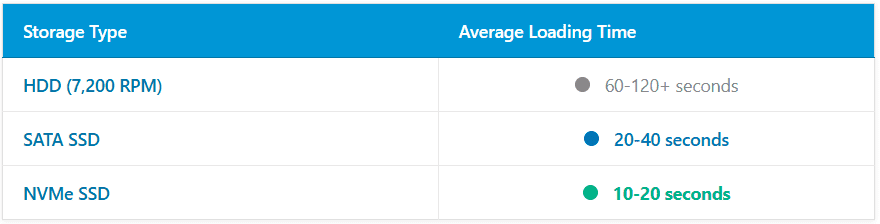
Loading Time Comparisons:
- HDD (7,200 RPM): 60-120+ seconds for large game levels
- SATA SSD: 20-40 seconds for the same content
- NVMe SSD: 10-20 seconds with near-instantaneous results
Impact on Gaming Experience
Storage choice affects more than just initial loading screens:
Open-World Performance: Faster storage reduces stuttering when new areas and textures need to load during gameplay, particularly noticeable in games like Cyberpunk 2077 or Red Dead Redemption 2
Texture Streaming: High-resolution textures load more quickly and completely with faster storage, preventing the “muddy texture” effect common with slower drives
Background Operations: SSDs allow smoother multitasking while gaming (Discord, browsers, streaming software) without impacting game performance
Game Installation/Updates: Significantly reduced time for installing new games or downloading patches—crucial for New Zealand’s sometimes limited internet speeds
System Boot Times: Overall system responsiveness improves dramatically, with boot times dropping from minutes to seconds
Cost vs. Performance Analysis for New Zealand Market
The price difference between storage technologies remains significant, though the gap continues to narrow. Here’s what New Zealand gamers can expect:
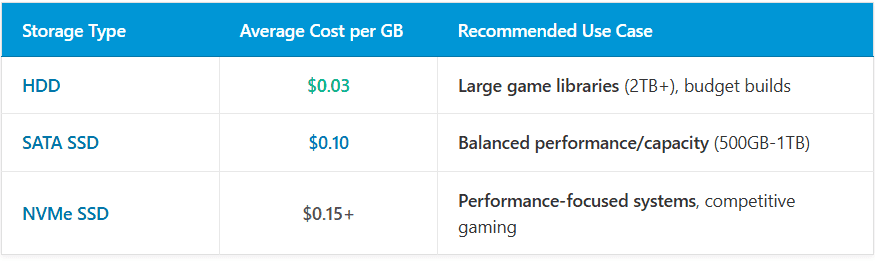
Storage Cost Breakdown:
-
HDD: Approximately $0.05-0.08 NZD per GB - Best for large game libraries (2TB+) and budget builds
-
SATA SSD: Approximately $0.15-0.25 NZD per GB - Balanced performance/capacity (500GB-1TB)
-
NVMe SSD: Approximately $0.20-0.40 NZD per GB - Performance-focused systems and competitive gaming
Strategic Storage Combinations
Many New Zealand gamers opt for hybrid storage solutions to maximise their budget:
SSD + HDD Combo: Install your operating system and most-played games on an SSD, with a larger HDD for storage of less frequently played titles and media files
SATA SSD + NVMe: Use a smaller NVMe drive for OS and competitive multiplayer games, with a larger SATA SSD for other games
Tiered Gaming Strategy: Keep competitive esports titles on fastest storage, single-player games on mid-tier, and archive games on bulk storage
HP OMEN Storage Upgrade Guide for New Zealand Users
Ready to upgrade your storage? Follow these step-by-step instructions for a smooth installation:
Required Tools
-
Phillips-head screwdriver (#0 or #1 for laptops, #2 for desktops)
-
Anti-static wrist strap (recommended)
-
Optional: External enclosure for data migration
-
Clean workspace with good lighting
Step-by-Step Installation Process
1. Preparation
-
Back up important data to cloud storage or external drive
-
Gather all necessary tools
-
Power down computer and unplug all cables
-
For laptops, remove battery if accessible
-
Ground yourself to prevent static discharge
2. Access Storage Area
For HP OMEN laptops:
-
Place laptop upside down on a stable surface
-
Remove bottom panel screws (usually Phillips-head)
-
Carefully pry open bottom panel, working around edges
-
Storage slots typically located near motherboard
-
Take photos for reference during reassembly
For HP OMEN desktops:
-
Remove side panel (typically secured with thumb screws)
-
Locate drive bays (usually in front/bottom of case)
-
Remove drive bay covers if necessary
-
Identify SATA and power cable locations
3. Install New Drive
For 2.5" Drives (HDD/SATA SSD):
-
Slide drive into drive bay until connectors align
-
Secure with screws if mounting brackets are present
-
Connect SATA data and power cables firmly
-
Ensure cables don’t interfere with fans or other components
For M.2 NVMe SSDs:
-
Locate M.2 slot on motherboard
-
Insert SSD at 30-degree angle, then press down
-
Secure with retention screw
-
Verify proper seating and connection
4. Reassembly and Configuration
-
Replace all panels and screws in reverse order
-
Reconnect all cables and power on system
-
For new additional drives: Initialize in Disk Management
-
For replacement drives: Use cloning software or fresh OS install
-
Verify drive recognition in BIOS/UEFI
Optimising System Settings for Maximum Performance
After physical installation, these software optimisations will ensure peak performance:
BIOS/UEFI Settings
-
Enable AHCI mode for SATA drives
-
Enable PCIe Gen 4 for compatible NVMe drives
-
Verify boot order is set correctly
-
Update BIOS to latest version for best compatibility
Windows Optimisations
For SSDs:
-
Disable disk defragmentation (Windows should auto-detect)
-
Disable indexing for improved longevity
-
Enable TRIM command for optimal performance
-
Set power plans to High Performance for maximum speed
General System Optimisations:
-
Update storage drivers from manufacturer website
-
Disable unnecessary startup programs
-
Configure page file settings appropriately
-
Regular disk cleanup and maintenance
Storage Strategy for Different Gaming Genres
First-Person Shooters and Esports
Fast loading times can provide competitive advantages. Consider NVMe SSDs for games like Counter-Strike, Valorant, or Overwatch where quick map loading and minimal stuttering matter.
Open-World RPGs
Large games like The Witcher 3 or Cyberpunk 2077 benefit enormously from fast storage, reducing texture pop-in and loading screens between areas.
Strategy Games
Turn-based and real-time strategy games are less dependent on storage speed but benefit from the overall system responsiveness that SSDs provide.
Multiplayer Online Games
Faster loading into matches gives you more time to prepare and coordinate with teammates.
Future-Proofing your Gaming Storage
Emerging Technologies
-
PCIe 5.0 SSDs will offer even faster speeds
-
DirectStorage API will further reduce game loading times
-
File compression improvements in modern games
Capacity Planning
Modern games are becoming increasingly large:
-
AAA titles: 50-150GB each
-
With high-resolution texture packs: 100-250GB
-
Factor in operating system and applications: 100-200GB
-
Plan for future game updates and DLC content
Regional Considerations for New Zealand Gamers
Internet Infrastructure
New Zealand’s improving but sometimes limited internet infrastructure makes local storage capacity more important. Having games stored locally reduces reliance on re-downloading content.
Power Efficiency
SSDs consume less power than HDDs, which can be beneficial for reducing electricity costs and heat generation—particularly relevant during New Zealand’s warmer months.
Shipping and Availability
Consider local availability and shipping times when planning upgrades. HP’s New Zealand presence ensures good support and parts availability.
Making the Right Choice for your Gaming Style
The ideal storage solution for your HP OMEN PC ultimately depends on your gaming habits, budget, and performance expectations:
Quick Decision Guide:
Unlimited Budget: High-capacity NVMe SSD for everything
Performance Focus: NVMe SSD for OS and competitive games, SATA SSD for other games
Balanced Approach: SATA SSD for frequently played games, HDD for storage
Budget Priority: Large HDD with small SSD for OS and one or two favourite games
Conclusion and Final Recommendations
Storage technology has never been more important for gaming performance. For New Zealand gamers looking to optimise their HP OMEN systems, the choice between HDD and SSD technologies depends on balancing performance needs with budget constraints.
Our Top Recommendations:
Best Overall Value: Hybrid approach with SSD for OS and key games, HDD for bulk storage
Competitive Gaming: Full NVMe SSD setup for maximum performance
Budget Gaming: Strategic use of smaller SSD with larger HDD backup
Remember that storage is one of the easiest components to upgrade in most systems. Starting with a smaller SSD for your operating system and most-played games, then adding more storage as your needs and budget allow, is often the most practical approach for New Zealand gamers.
Ready to upgrade your OMEN’s storage performance? Explore HP’s complete range of gaming desktops and gaming laptops to find the perfect system for your gaming needs, or consider upgrading your current setup with the latest storage technologies.
For those seeking the ultimate gaming experience, browse our selection of premium gaming systems designed to handle the most demanding games and applications with ease.
Recent Posts




Popular Posts




Products purchased through this store are sold and fulfilled by Ingram Micro (NZ) LTD

CONTACT US
Call us
- Sales
- 0800 854 848
- Technical support
- +64 9884 8600
Mon-Fri 9.00am - 6.00pm
(exc. Public Holidays)
Chat with us
- Our specialist are here to help
- Live chat
Mon-Fri 9.00am - 6.00pm
(exc. Public Holidays)
Submit feedback
We value your opinion!