Thank you for visiting the NEW ZEALAND HP Store
-
Contact Us
CONTACT USCall us
- Sales
- 0800 854 848
- Technical support
- +64 9884 8600
Mon-Fri 9.00am - 6.00pm
(exc. Public Holidays)
Chat with us- Our specialist are here to help
- Live chat
Mon-Fri 9.00am - 6.00pm
(exc. Public Holidays)
Submit feedback We value your opinion! - My Account

Search
How to Download Videos from Facebook and YouTube: The Complete New Zealand Guide

Posted:
April 26, 2025
Categories:
Miscellaneous
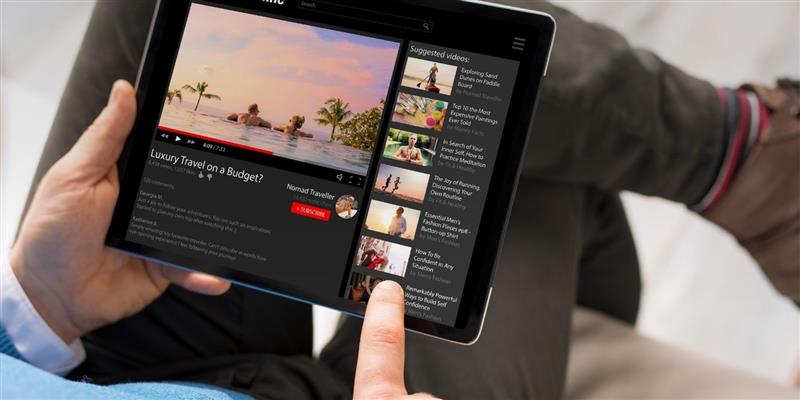
Are you keen to save a brilliant video from Facebook or YouTube for offline viewing without having to search through hundreds of daily posts? Or perhaps you’d like to watch that special video when you’re away tramping in the Tongariro Alpine Crossing with no internet access? If you’re nodding in agreement, you’re in the right place. For many of us in New Zealand, where mobile data can be costly or when preparing for a trip to areas with limited connectivity like the Coromandel Peninsula or Stewart Island, having the ability to download videos becomes even more valuable.
In this comprehensive guide, we’ll explain how to download tutorials, recipes, music videos, or trending content from Facebook and YouTube easily and for free, without requiring advanced technical knowledge. Whether you’re preparing for a long train journey on the Northern Explorer or simply want to conserve your mobile data plan while exploring Auckland or Wellington, these methods will help you enjoy your favourite content whenever and wherever you want.
Contents
Download Videos from Facebook: Simple and Effective Methods
Method 1: Download Facebook Videos from your Browser
Facebook doesn’t offer an integrated download button, but there are easy methods to save videos directly from your browser:
-
Find the video you want to download in your feed or on a page.
-
Click on the three dots that appear in the top right corner of the video.
-
Select “Save video.” This option will save the video to your “Saved” section but won’t download it to your device.
-
To download the video, when it’s playing, right-click on it and select “Save video as” (this step works primarily on computers).
-
Choose the location where you want to save the video and click “Save.”
If this method doesn’t work, it may be because the video has special restrictions. In that case, try the next method.
Method 2: Download Facebook Videos by Modifying the URL
This method is generally useful only for public videos:
-
Open the video you want to download in a separate tab.
-
In the browser’s address bar, change “www.facebook.com” to “mbasic.facebook.com”.
-
Press Enter to load the basic version of Facebook.
-
Find the video and click on it to play it.
-
Right-click on the video and select “Save video as”.
-
Choose where to save the file and confirm.
This method uses Facebook’s basic mobile version, which has fewer protections for content downloads. Many Kiwis find this method particularly helpful when using public Wi-Fi networks with limited bandwidth, like those found in some cafés or public libraries across Auckland, Wellington, and Christchurch.
Method 3: Download Facebook Videos on Mobile Devices
On phones and tablets, the process is slightly different:
-
Open the Facebook application and find the video you want to download.
-
Tap the three dots in the top right corner of the video.
-
Select “Save to your phone” if available. If you don’t see this option, try the next step.
-
Copy the video link by selecting “Copy link”.
-
Open your browser and paste the link, but change “www.facebook.com” to “mbasic.facebook.com”.
-
Tap the video to play it.
-
Press and hold the video until a menu appears and select “Download video” or “Save”.
Remember that these methods work best for public videos. If the video has privacy restrictions, you may not be able to download it.
Download Videos from YouTube: Legal and Free Options

Method 1: Use YouTube Premium to Download Videos
The official and secure way is through YouTube Premium:
-
Subscribe to YouTube Premium (it has a monthly cost but includes a free trial period).
-
Open the video you want to download.
-
Click “Download,” which appears below the video alongside the “Like” and “Share” options.
-
Select your preferred video quality.
-
Find your downloaded videos in the “Library” > “Downloads” section.
This option is legal and allows you to watch videos offline for up to 30 days, which is perfect for New Zealanders planning trips to areas with limited connectivity or preparing for international travel where data roaming can be expensive.
Method 2: Download YouTube Videos Using a Web Browser
To download without a premium subscription:
-
Open YouTube in your browser and search for the video you want to download.
-
Modify the video URL: before “youtube.com” add “ss”, resulting in “www.ssyoutube.com/rest-of-the-link”.
-
Press Enter and you’ll be redirected to a site that will allow you to download the video.
-
Select your preferred format and quality.
-
Click “Download” and wait for the process to complete.
This technique uses third-party services that act as intermediaries for downloading. For New Zealanders with data caps, selecting lower quality downloads can help conserve precious data allowances, especially important with the various data plans offered by local providers.
Method 3: Download Audio from YouTube
If you only need the audio (for example, for songs or sound effects):
-
Find the video of the song or audio you want to download.
-
Copy the video URL.
-
Visit an online YouTube to MP3 converter (there are many free ones).
-
Paste the URL in the indicated field.
-
Select the MP3 format and audio quality.
-
Click “Convert” or “Download”.
-
Save the file to your device when the conversion is complete.
It’s important to mention that this method is ideal for content with licences that allow personal use or that are in the public domain.
Method 4: Download YouTube Videos on Mobile Devices
On smartphones and tablets, the process is similar:
-
Open the YouTube app and search for the video.
-
If you have YouTube Premium, you’ll see the download button below the video.
-
If you don’t have Premium, copy the video link by tapping “Share” and select “Copy link”.
-
Open your browser and paste the link into an online download service.
-
Select your preferred format and quality.
-
Download the file and save it to your gallery or files.
Some mobile browsers like Opera Mini have built-in functions for downloading videos, which makes the process even easier.
Important Considerations when Downloading Videos

Legal Aspects and Copyright
It’s essential to keep these points in mind:
-
Respect copyright. Only download videos for personal use.
-
Don’t redistribute or commercialise downloaded content without authorisation.
-
Check the usage policies of each platform, as they change frequently.
-
Be careful with third-party services that could contain malicious software.
New Zealand copyright laws protect creative content, so ensure you’re only downloading content for personal use.
Safety Tips When Downloading Videos
To protect your device while downloading:
-
Only use recognised sites for downloading videos.
-
Avoid clicking on suspicious ads or download buttons.
-
Keep your antivirus updated if you’re using a computer.
-
Review the permissions requested by mobile applications.
-
Prefer official methods like YouTube Premium.
Alternatives to Downloading Videos
If you don’t want to take up space on your device, consider these options:
-
Offline playlists on YouTube Premium.
-
Save videos on Facebook for easy access later.
-
Use streaming services that allow temporary downloads.
-
Share links instead of complete files.
For those with limited storage on their devices, consider using cloud storage services popular in New Zealand to store your downloaded videos, or invest in external storage solutions. Many accessories such as the HP wired mouse 100 come as great companions to your new device purchase from our HP laptops and HP desktop family collections.
Conclusion
As you can see, downloading videos from Facebook and YouTube is straightforward, and you can do it from your computer or mobile device. With these free methods we’ve shared, you can now save and enjoy your favourite content without needing an internet connection or embarking on a lengthy search to find that tutorial or funny video.
Remember that it’s important to respect copyright and use downloaded content only for personal purposes. In New Zealand, where mobile data can be expensive and connectivity might vary in certain areas like the West Coast or parts of Northland, having offline access to important videos can be incredibly valuable.
Looking to upgrade your device for better video downloading and viewing experience? Visit our HP laptops or HP desktop family pages to find the perfect solution for your needs. With our selection of accessories, you can also enhance your viewing experience with extras like mice, keyboards, and external storage options.
Ready for action? Start practising these techniques and take your favourite videos with you wherever you go, whether you’re commuting on the train in Auckland or relaxing at home in your Kiwi bach.
Recent Posts

Popular Posts






Products purchased through this store are sold and fulfilled by Ingram Micro (NZ) LTD

CONTACT US
Call us
- Sales
- 0800 854 848
- Technical support
- +64 9884 8600
Mon-Fri 9.00am - 6.00pm
(exc. Public Holidays)
Chat with us
- Our specialist are here to help
- Live chat
Mon-Fri 9.00am - 6.00pm
(exc. Public Holidays)
Submit feedback
We value your opinion!