Thank you for visiting the NEW ZEALAND HP Store
-
Contact Us
CONTACT USCall us
- Sales
- 0800 854 848
- Technical support
- +64 9884 8600
Mon-Fri 9.00am - 6.00pm
(exc. Public Holidays)
Chat with us- Our specialist are here to help
- Live chat
Mon-Fri 9.00am - 6.00pm
(exc. Public Holidays)
Submit feedback We value your opinion! - My Account

Search
Maximising Gaming Performance: A Complete Guide to HP OMEN Gaming Hub Settings

Posted:
June 26, 2025

Gaming in New Zealand presents unique challenges, from ensuring optimal performance during extended gaming sessions to managing network connectivity across our diverse geography. Whether you’re competing in local eSports tournaments in Auckland or enjoying single-player adventures in rural areas, maximising your gaming PC’s performance is crucial. The HP OMEN Gaming Hub isn’t just a control panel—it’s a comprehensive suite of tools designed to extract maximum performance from your gaming hardware through intelligent optimisation and customisation.
This guide will walk you through the most impactful OMEN Gaming Hub settings, show you how to create game-specific profiles, and help you monitor system performance to ensure your HP gaming PC is delivering its absolute best. Whether you’re a competitive eSports player seeking every possible frame rate advantage or a casual gamer looking for the smoothest possible experience, these optimisations will elevate your gaming sessions.
Contents
- Getting Started with OMEN Gaming Hub
- Core Performance Optimisation Features
- Network Booster: Reducing Online Lag
- Game-Specific Optimisation
- Analysing and Adjusting Based on Performance Data
- Advanced Monitoring Features
- Additional OMEN Gaming Hub Features
- Troubleshooting Common Issues
- Maximising Performance for New Zealand Conditions
- Optimise, Customise, Dominate
Getting Started with OMEN Gaming Hub
Installation and Access
Download the latest version from the official HP OMEN Gaming Hub website or the Microsoft Store
Run the installer and follow the on-screen prompts
Launch the application from your desktop or Start menu
Sign in with your HP account (or create one) for full functionality
Interface Overview and Navigation
The OMEN Gaming Hub features an intuitive dashboard with several key sections:
Home: Quick access to recent games and system status
System Vitals: Real-time monitoring of CPU, GPU, RAM usage, and temperatures
Performance Control: CPU and GPU power settings, fan control, and overclocking options
Network Booster: Traffic prioritisation to reduce latency in online games
Gaming Profiles: Game-specific optimisations and settings
Lighting: Customisation options for RGB lighting systems
Gallery: Game capture and screenshot management
Rewards: Special offers and challenges for OMEN users
Initial Setup Recommendations
To get the most out of OMEN Gaming Hub from day one, configure these essential settings:
-
Enable System Monitoring: Activate performance metrics to identify potential bottlenecks
-
Create a Base Performance Profile: Establish a starting point for system-wide optimisations
-
Configure Network Priorities: Set your games as high priority for reduced latency
-
Set Power Modes: On laptops, ensure Performance Mode is enabled when plugged in
Core Performance Optimisation Features
Performance Control: Fine-Tuning your Hardware
The Performance Control section is where you’ll find the most impactful settings for maximising frame rates and responsiveness.
CPU Optimisation
Undervolting (Advanced Users):
-
Reduce CPU voltage slightly to improve thermals and efficiency
-
Start with small increments (-0.05V) and test stability
-
Monitor temperatures before and after adjustments
-
Save stable settings to your profile once optimised
Performance Modes:
-
Balanced: Default setting that balances performance and power consumption
-
Performance: Maximises CPU power with higher sustained clock speeds
-
Turbo (if available): Removes power limits for maximum short-term performance
GPU Tuning
Core Clock Adjustment:
-
Increase GPU core clock in small increments (25MHz steps)
-
Test stability with built-in benchmarks or games
-
Save optimised settings to profiles for specific games
Memory Clock Adjustment:
-
Similar to core clock, increase in small increments
-
Can improve performance in memory-bandwidth-limited scenarios
-
More conservative adjustments compared to core clock are recommended
Power Limit Modifications:
-
Increase power limits to allow sustained boost clocks
-
Monitor temperatures to ensure they remain within safe ranges
-
Most effective when combined with improved cooling
Fan Control Options
OMEN Gaming Hub provides several approaches to cooling management:
-
Auto Mode: Dynamic adjustment based on system load
-
Max Performance: Highest fan speeds for maximum cooling
-
Balanced: Moderate fan speeds with reasonable noise levels
-
Quiet: Reduced fan speeds for minimal noise (at the cost of some thermal performance)
-
Custom Curves: Define your own fan speed curve based on temperature thresholds
Memory and Storage Optimisation
-
Game Mode: Automatically terminates unnecessary background processes
-
Memory Allocation: Prioritises RAM for active games
-
Virtual Memory: Configure optimal paging file size for your system
Network Booster: Reducing Online Lag
Network performance is critical for online gaming, particularly in New Zealand where connection quality can vary significantly between urban and rural areas. OMEN Gaming Hub’s Network Booster offers several ways to optimise your connection:
Network Prioritisation
-
Gaming Priority Mode: Automatically detects and prioritises game traffic
-
Application Control: Manually set priority levels for specific applications
-
Background Bandwidth Limits: Restrict non-essential applications from consuming bandwidth
Dual Network Support (When Available)
-
Load Balancing: Distribute network traffic across wired and wireless connections
-
Redundancy Mode: Automatically switch to secondary connection if primary fails
-
Combined Bandwidth: Utilise both connections simultaneously for increased throughput
Game-Specific Optimisation
Creating Custom Game Profiles
One of OMEN Gaming Hub’s most powerful features is the ability to create custom profiles for individual games:
-
Navigate to the My Games section
-
Select a game from your library or add a new one
-
Click Create Profile or Edit Profile
-
Customise performance settings specific to that game
-
Save the profile, which will automatically activate when the game launches
Recommended Settings for Popular Game Genres
First-Person Shooters (Call of Duty, Valorant, CS2)
FPS games benefit from maximum frame rates and responsive input:
-
CPU: Performance or Turbo mode
-
GPU: Maximise clock speeds for highest possible FPS
-
Network: Highest priority for low latency
-
Display: Enable OMEN Dynamic Force if available for reduced input lag
Open-World RPGs (Cyberpunk 2077, Elden Ring)
These visually rich games need a balance of performance and visual quality:
-
CPU: Balanced mode for consistent frame pacing
-
GPU: Focus on stable performance rather than maximum clocks
-
Memory: Prioritise texture streaming to prevent stuttering
-
Fan Control: Consider a slightly more aggressive curve for extended sessions
Competitive MOBAs (League of Legends, Dota 2)
These games typically benefit from:
-
CPU: Performance mode for consistent frame rates during team fights
-
Network: Highest priority setting
-
Fan Control: Balanced profile as these games are less demanding
-
Memory: Standard allocation is usually sufficient
Strategy and Simulation Games
For games that are often CPU-intensive:
-
CPU: Performance mode with emphasis on multi-thread performance
-
GPU: Standard settings are usually sufficient
-
Memory: Increased allocation for large maps or simulations
-
Storage: Standard settings as file access is typically not a bottleneck
Analysing and Adjusting Based on Performance Data
OMEN Gaming Hub provides real-time performance metrics that can guide your optimisation efforts:
-
Monitor FPS stability rather than just peak values
-
Track thermal performance during extended gaming sessions
-
Note CPU and GPU utilisation to identify potential bottlenecks
-
Adjust settings incrementally and test the results
-
Save successful configurations to game-specific profiles
Advanced Monitoring Features
System Vitals Dashboard
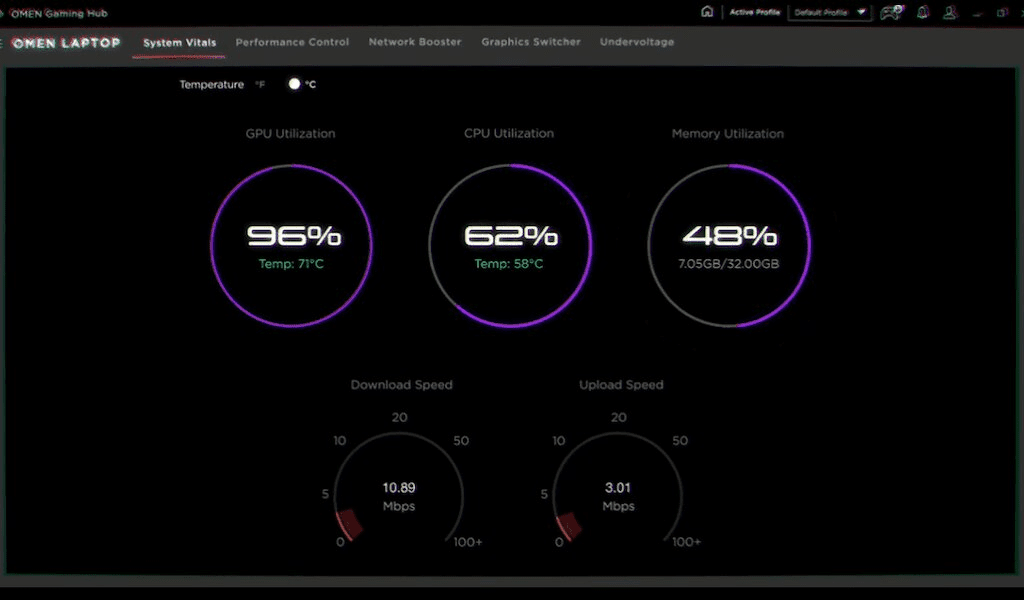
The System Vitals section provides a comprehensive overview of your system’s performance metrics:
Key Metrics to Monitor
-
CPU & GPU Usage: Indicates how heavily each component is being utilised
-
Temperatures: Critical for ensuring components aren’t overheating
-
Clock Speeds: Shows if your components are maintaining their boost frequencies
-
Memory Usage: Helps identify if you need more RAM or better allocation
-
Frame Rates: The ultimate measure of gaming performance
Understanding Thermal Management
Heat is the enemy of consistent performance. The thermal management features in OMEN Gaming Hub help you:
-
Monitor temperature trends over time
-
Identify thermal throttling events where performance is reduced to protect components
-
Adjust fan curves to maintain optimal temperatures
-
Balance noise levels and cooling performance based on your preferences
Using Performance Alerts
Configure alerts to notify you when:
-
Temperatures exceed safe thresholds
-
Performance drops below expected levels
-
System resources become constrained
-
Network latency increases significantly
Built-In Diagnostics
OMEN Gaming Hub includes diagnostic tools to help identify and resolve potential issues:
-
Hardware scanning to detect failing or underperforming components
-
Performance benchmarking to establish baseline metrics
-
Network analysis to identify connection issues or latency spikes
Additional OMEN Gaming Hub Features
RGB Lighting Customisation
Personalise your gaming environment with customisable lighting effects:
-
Game-Reactive Lighting: RGB effects that respond to in-game events
-
Audio Sync: Lighting that pulses with game audio
-
Effect Library: Pre-configured lighting schemes
-
Custom Patterns: Create your own unique lighting effects
-
Profile Integration: Lighting settings can be saved with game profiles
OMEN Rewards Programme
Participate in the OMEN Rewards programme directly through the Gaming Hub:
-
Daily Challenges: Complete tasks to earn points
-
Special Promotions: Access exclusive offers and discounts
-
Content Unlocks: Earn in-game content for supported titles
-
Hardware Rewards: Redeem points for OMEN gear and accessories
Streaming and Content Creation Tools
OMEN Gaming Hub integrates with popular streaming and content creation platforms:
-
Screen Capture: Record gameplay footage with minimal performance impact
-
Stream Controls: Manage your streams without leaving your game
-
Discord Integration: Communicate with your audience while gaming
-
Gallery Management: Organise and edit your gameplay clips
Troubleshooting Common Issues
Resolving Performance Bottlenecks
If you’re experiencing lower-than-expected performance:
Close unnecessary background applications
-
Use Task Manager (Ctrl+Shift+Esc) to identify resource-heavy programmes
-
Consider disabling startup programmes that run in the background
Adjust in-game settings
-
Lower resolution or scaling for GPU bottlenecks
-
Reduce CPU-intensive settings like physics or draw distance if CPU limited
-
Adjust shadow quality, which affects both CPU and GPU
Utilise OMEN Gaming Hub’s optimisation features
-
Try the one-click performance boost option
-
Enable Game Mode to prioritise system resources
-
Check for thermal throttling and adjust cooling if necessary
Fixing Connectivity Issues
Network problems can ruin your online gaming experience, particularly relevant for New Zealand gamers dealing with varying connection quality:
Verify Network Booster is properly configured
-
Ensure your games are set to high priority
-
Check that bandwidth limits are appropriate for your connection
Update network drivers
-
Use HP Support Assistant to check for driver updates
-
Consider reinstalling network drivers if issues persist
Test connection stability
-
Use the built-in network diagnostics tool
-
Check for interference if using WiFi
Software Maintenance
Keep your OMEN Gaming Hub running smoothly:
Update regularly
-
Check for updates in the settings menu
-
Allow automatic updates when possible
Scan for conflicts
-
Run the built-in diagnostics to identify software conflicts
-
Temporarily disable other gaming utilities that might interfere
Reset to defaults if necessary
-
If you encounter persistent issues, reset to default settings
-
Gradually reapply your customisations to identify problematic settings
Maximising Performance for New Zealand Conditions
Climate Considerations
New Zealand’s varied climate can affect your gaming PC’s performance:
-
Hot summers: Consider more aggressive cooling profiles during summer months
-
Humid conditions: Monitor for condensation issues in coastal areas
-
Temperature fluctuations: Adjust thermal thresholds based on seasonal changes
Power Efficiency
With rising energy costs, optimising power consumption whilst maintaining performance is increasingly important:
-
Use balanced modes when maximum performance isn’t required
-
Configure automatic profile switching based on power source
-
Monitor power consumption through OMEN Gaming Hub’s metrics
Optimise, Customise, Dominate
The OMEN Gaming Hub provides a powerful suite of tools to maximise your gaming PC’s performance. By taking advantage of these features—from performance tuning and network optimisation to custom game profiles and real-time monitoring—you can ensure your system delivers its absolute best when it matters most.
For New Zealand gamers, these optimisations are particularly valuable given our unique challenges, from varying internet infrastructure to diverse climate conditions. The time invested in mastering OMEN Gaming Hub will pay dividends in smoother gameplay, higher frame rates, and a more immersive gaming experience.
Remember that optimisation is an ongoing process. As games update and your preferences evolve, continue to refine your profiles and settings. Keep exploring new features as they’re added through software updates, and don’t hesitate to experiment with different configurations to find what works best for your specific games and play style.
Whether you’re gaming in Auckland’s competitive scene or enjoying solo adventures in more remote areas of New Zealand, these optimisation techniques will help you get the most from your HP gaming hardware. The combination of powerful hardware and intelligent software optimization ensures you’re always ready for whatever gaming challenge comes next.
Complete your Gaming Setup
Enhance your optimised OMEN gaming experience with HP’s complete range of gaming desktops and business monitors designed to complement your high-performance system. From high-refresh displays to professional-grade peripherals, HP offers everything needed to build the ultimate gaming environment for New Zealand conditions.
Recent Posts


Popular Posts





Products purchased through this store are sold and fulfilled by Ingram Micro (NZ) LTD

CONTACT US
Call us
- Sales
- 0800 854 848
- Technical support
- +64 9884 8600
Mon-Fri 9.00am - 6.00pm
(exc. Public Holidays)
Chat with us
- Our specialist are here to help
- Live chat
Mon-Fri 9.00am - 6.00pm
(exc. Public Holidays)
Submit feedback
We value your opinion!