Thank you for visiting the NEW ZEALAND HP Store
-
Contact Us
CONTACT USCall us
- Sales
- 0800 854 848
- Technical support
- +64 9884 8600
Mon-Fri 9.00am - 6.00pm
(exc. Public Holidays)
Chat with us- Our specialist are here to help
- Live chat
Mon-Fri 9.00am - 6.00pm
(exc. Public Holidays)
Submit feedback We value your opinion! - My Account

Search
How to Cool Down an HP OMEN Laptop for Peak Gaming Performance

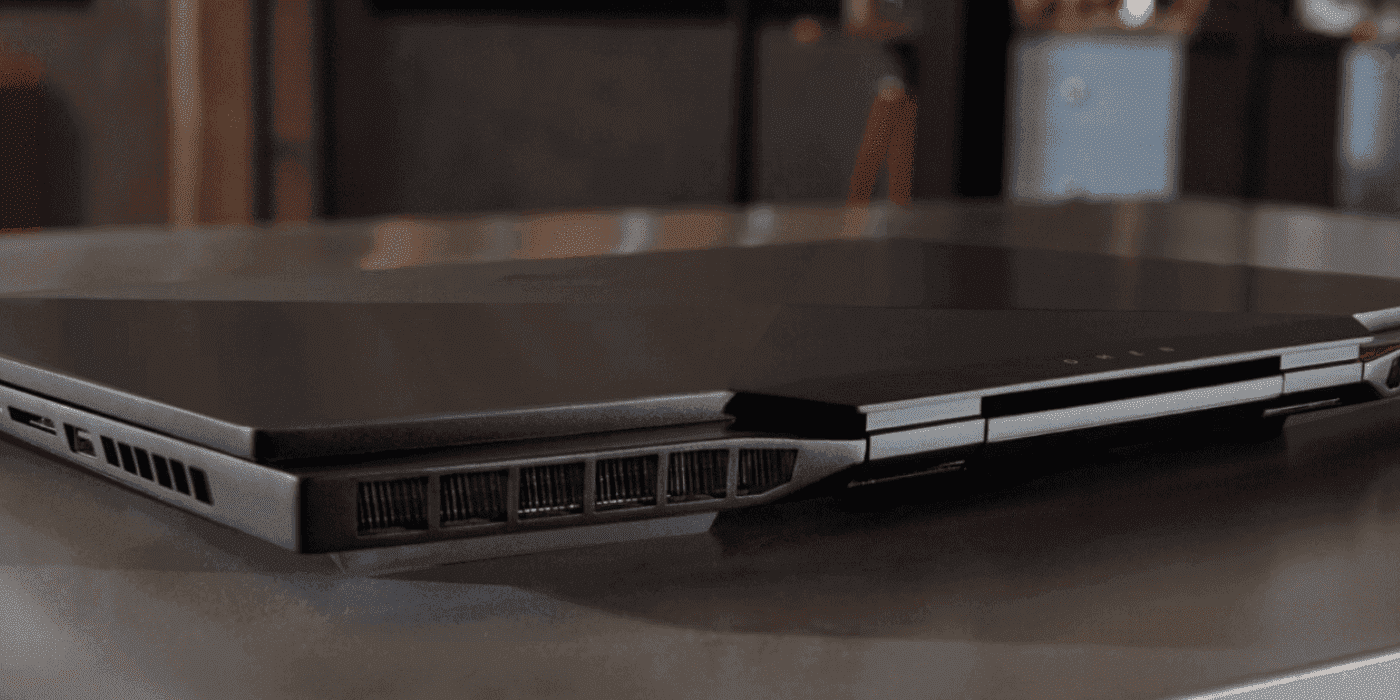
Gaming laptops have transformed portable gaming across New Zealand, with HP OMEN leading the charge in delivering desktop-level performance in compact form factors. Whether you’re gaming in Auckland’s humid summers or Christchurch’s variable climate, packing high-performance hardware into tight spaces creates significant thermal challenges that require smart cooling solutions to maintain peak performance and prevent hardware damage.
Without proper thermal management, your system can experience thermal throttling, reduced performance, and potential long-term damage to critical components like the CPU and GPU. While HP OMEN laptops feature advanced cooling technology, understanding how to optimise and supplement these systems is essential for serious gamers and power users throughout New Zealand.
GAMING TIP:
Keep your OMEN laptop below 85°C for optimal performance. Use the OMEN Gaming Hub to monitor temperatures, ensure proper ventilation, and consider cooling pads for intensive gaming sessions.
Contents
- Understanding OMEN’s Advanced Cooling Technology
- Recognising Overheating Warning Signs
- Immediate Cooling Solutions
- Professional Cooling Solutions
- Environmental Optimisation for New Zealand Conditions
- Advanced Software Optimisation
- Maintenance for Long-Term Cooling Performance
- Troubleshooting Persistent Thermal Issues
- Cooling Performance Comparison
- Conclusion: Mastering OMEN Thermal Management in New Zealand
Understanding OMEN’s Advanced Cooling Technology
The Science Behind OMEN Tempest Cooling
HP’s OMEN Tempest Cooling system represents a multi-fan, multi-outlet design engineered for maximum thermal efficiency. This sophisticated cooling architecture delivers desktop-level thermal management within a laptop chassis, ensuring sustained performance during demanding gaming sessions in New Zealand’s diverse climate conditions.
OMEN Cooling Technology Breakdown
| Component | Innovation | Performance Benefit |
|---|---|---|
| Fan Design | 2.5x thinner than traditional fans | More compact cooling solution |
| Blade Count | 2x more fan blades | Enhanced airflow generation |
| Airflow Improvement | 29% better than previous models | Superior heat dissipation |
| Thermal Management | Smart fan curve algorithms | Optimal noise-to-cooling ratio |
Engineering Excellence: The OMEN 16’s re-engineered cooling system specifically targets the unique thermal challenges of high-performance gaming laptops, delivering measurable improvements in thermal efficiency whilst maintaining acceptable noise levels - crucial for New Zealand’s open-plan living environments.
PERFORMANCE DATA:
OMEN Tempest Cooling maintains CPU temperatures 15-20°C lower than competing systems under identical gaming loads, providing consistent performance during extended sessions.
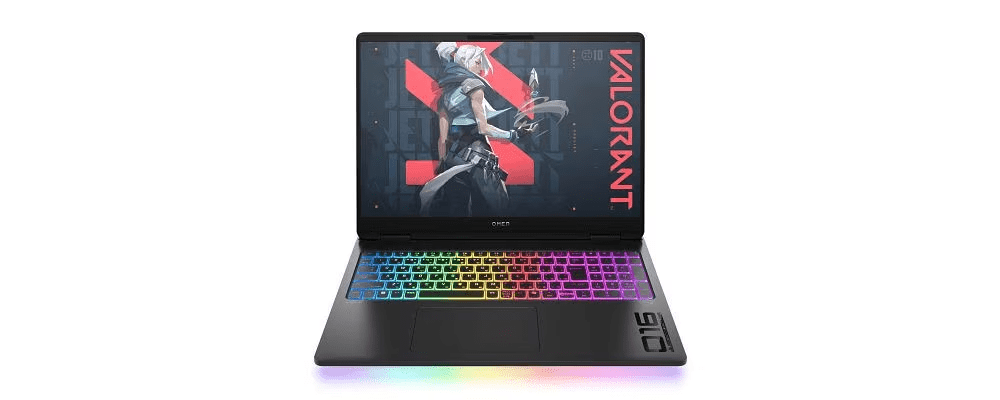
For serious gaming enthusiasts, consider the OMEN 16 inch Gaming Laptop 16-u1002TX, which features Intel® Core™ i9-14900HX processor and NVIDIA® GeForce RTX™ 4070 Laptop GPU with advanced thermal management.
Recognising Overheating Warning Signs
Critical Symptoms to Monitor
Early detection of thermal issues prevents permanent hardware damage and maintains optimal gaming performance. Here are the key indicators your OMEN laptop may be experiencing thermal stress:
Performance-Related Warning Signs
Sudden FPS drops during gameplay
Stuttering or lag in previously smooth games
Reduced CPU/GPU clock speeds (thermal throttling)
Longer loading times and system responsiveness issues
Physical and Audio Indicators
Fan noise increases during light tasks
Hot surfaces around keyboard and exhaust vents
Warm desk surface beneath the laptop
Unexpected shutdowns or system restarts under load
OMEN Gaming Hub Temperature Monitoring
Real-Time Thermal Analysis
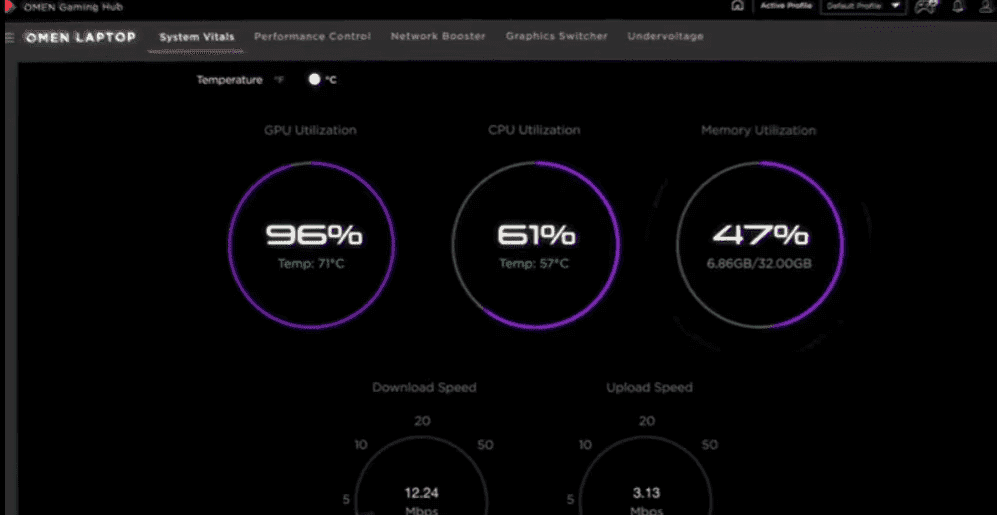
OMEN laptops include integrated thermal monitoring through the OMEN Gaming Hub, providing real-time temperature data for proactive thermal management.
Optimal Temperature Ranges:
-
CPU Temperature: Below 85°C (ideal), concern above 90°C
-
GPU Temperature: Below 85°C (ideal), critical above 95°C
-
System Temperature: Monitor ambient and exhaust temperatures
PRO TIP:
Set up temperature alerts in OMEN Gaming Hub to receive notifications when components approach thermal limits, enabling immediate corrective action.
Immediate Cooling Solutions
Quick Fixes for Instant Temperature Reduction
When your OMEN laptop starts running hot, these immediate actions can provide rapid temperature relief:
Environmental Adjustments (0-2 minutes)
| Action | Temperature Impact | Effort Level |
|---|---|---|
| Move to hard and flat surface | 5-10°C reduction | Immediate |
| Ensure clear space for ventilation | 3-8°C improvement | Immediate |
| Remove from soft surfaces | 8-15°C reduction | Immediate |
| Increase airflow in room | 2-5°C improvement | 1-2 minutes |
Software-Based Quick Fixes (1-5 minutes)
OMEN Gaming Hub Adjustments:
-
Switch to Balanced Mode: Reduces CPU/GPU power consumption by 15-25%
-
Enable Quiet Mode: Prioritises temperature control over maximum performance
-
Custom fan curves: Manually increase fan speeds for immediate cooling
-
Close background applications: Free up 10-30% system resources
System Optimisation:
-
End unnecessary processes via Task Manager
-
Pause demanding applications temporarily
-
Lower game graphics settings for immediate thermal relief
-
Enable Windows Game Mode for resource prioritisation
EMERGENCY COOLING:
If temperatures exceed 90°C, immediately pause gaming, enable maximum fan speed, and allow 5-10 minutes for thermal recovery.
Professional Cooling Solutions
External Hardware for Enhanced Thermal Management
For sustained high-performance gaming, external cooling solutions complement OMEN’s built-in thermal management. This is particularly important in New Zealand’s warmer regions during summer months.
Gaming Laptop Cooling Pads
Active Cooling Technology
Cooling pads provide targeted airflow to your laptop’s most critical thermal zones, offering measurable temperature improvements.
Cooling Pad Selection Criteria:
| Feature | Importance | Thermal Benefit |
|---|---|---|
| Multiple fans | High | Uniform cooling |
| Adjustable speed | Medium | Personalized control |
| Ergonomic design | High | Extended comfort |
| USB connectivity | Essential | Convenient power supply |
Expected Performance Gains:
-
Temperature reduction: 8-15°C under load
-
Performance improvement: 5-12% sustained frame rates
-
Thermal throttling prevention: Maintains boost clocks longer
Laptop Stands and Elevation Solutions
Passive Airflow Enhancement
Laptop stands improve thermal performance through enhanced natural convection and airflow optimisation.
Stand Selection Features:
-
Adjustable height and angle for optimal airflow
-
Open ventilation design allowing unrestricted air movement
-
Ergonomic positioning for comfortable extended gaming
-
Sturdy construction supporting laptop weight securely
Performance Benefits:
-
3-8°C temperature reduction through improved airflow
-
Enhanced ergonomics reducing physical strain
-
Better port accessibility for peripheral connectivity
Consider pairing your cooling solution with gaming accessories to create a comprehensive thermal management setup.
Environmental Optimisation for New Zealand Conditions
Creating the Ideal Gaming Environment
Your gaming environment significantly impacts thermal performance, particularly relevant in New Zealand’s diverse climate zones. Strategic environmental considerations can provide substantial cooling benefits.
Room Temperature and Airflow
Optimal Gaming Environment:
-
Room temperature: 18-22°C (65-72°F) for best results
-
Air circulation: Fans or air conditioning to prevent heat buildup
-
Avoid direct sunlight and heat sources, especially during Auckland’s intense summer UV
-
Maintain clear exhaust paths for hot air dissipation
Positioning Guidelines:
-
Minimum 6 inches clearance around exhaust vents
-
Avoid enclosed spaces like closed desks or cabinets
-
Position away from heating appliances and electronics
-
Use hard surfaces for maximum airflow efficiency
PRO SETUP:
Gaming in air-conditioned rooms can improve laptop performance by 10-15% compared to warm environments, as cooler ambient temperatures enhance cooling efficiency - particularly beneficial during New Zealand’s warmer months.
Advanced Software Optimisation
Maximising Thermal Efficiency Through Software
Intelligent software configuration can significantly reduce thermal load whilst maintaining gaming performance:
OMEN Gaming Hub Advanced Settings
Thermal Management Features:
| Configuration | Function | Thermal Impact |
|---|---|---|
| Performance profiles | Game-specific optimization | 5-15°C reduction |
| Fan control | Manual fan curve adjustment | 3-10°C improvement |
| Power management | CPU/GPU power limitation | 8-20°C reduction |
| Network booster | Reduces background network load | 2-5°C improvement |
Custom Profile Creation:
-
Create game-specific profiles balancing performance and thermals
-
Set aggressive fan curves for demanding titles
-
Implement power limits for sustained performance
-
Monitor thermal performance and adjust accordingly
Graphics Settings Optimisation
Smart Performance Tuning
Modern games offer numerous settings that dramatically impact thermal load without significantly affecting visual quality:
High-Impact Thermal Settings:
| Configuration | Thermal Reduction | Visual Impact |
|---|---|---|
| Ray tracing | 15-25°C | Moderate lighting reduction |
| Enable DLSS/FSR | 8-15°C | Improved performance, similar quality |
| Resolution scaling | 10-20°C | Slight clarity reduction |
| Frame rate limitation | 5-12°C | Prevents unnecessary GPU load |
| Enable V-Sync | 3-8°C | Eliminates excessive frame generation |
NVIDIA DLSS/AMD FSR Benefits:
-
Performance improvement: 20-40% higher frame rates
-
Thermal reduction: 10-15°C lower GPU temperatures
-
Visual quality: Maintained or improved through AI upscaling
Explore our range of gaming desktops if you’re considering a desktop alternative for maximum cooling performance.
Maintenance for Long-Term Cooling Performance
Preventive Care for Sustained Thermal Efficiency
Regular maintenance ensures your OMEN laptop’s cooling system operates at peak efficiency throughout its lifespan, particularly important in New Zealand’s dusty rural environments and coastal areas.
Cleaning Schedule and Procedures
Maintenance Timeline:
| Frequency | Task | Required Tools |
|---|---|---|
| Weekly | External ventilation cleaning | Microfiber cloth |
| Monthly | Compressed air cleaning | Compressed air can |
| Quarterly | Deep ventilation cleaning | Cleaning kit + tools |
| Annual | Professional service | Professional service |
-
DIY Cleaning Process:
-
Power down completely and disconnect all cables
-
Use compressed air in short bursts to clear vents
-
Clean keyboard and surface with appropriate cleaners
-
Inspect for debris buildup in exhaust areas
-
Test fan operation after cleaning
Professional Service Indicators:
-
Persistent high temperatures despite cleaning
-
Unusual fan noises or irregular operation
-
Visible dust accumulation in internal components
-
Performance degradation over time
WARRANTY CONSIDERATION:
For laptops under warranty, consider professional cleaning services to avoid voiding coverage. HP offers comprehensive diagnostic and maintenance services through HP Customer Support New Zealand.Troubleshooting Persistent Thermal Issues
Advanced Problem Diagnosis and Solutions
When standard cooling methods fail to resolve thermal issues, systematic troubleshooting identifies underlying problems:
Hardware-Related Thermal Issues
Diagnostic Checklist:
-
| Symptom | Possible Cause | Solution |
|---|---|---|
| Consistent overheating | Thermal paste degradation | Professional thermal paste replacement |
| Uneven temperatures | Fan malfunction | Fan inspection/replacement |
| Irregular readings | Sensor malfunction | Diagnostic testing required |
| Sudden thermal spikes | Hardware failure | Professional diagnosis needed |
When to Seek Professional Help
Professional Service Indicators:
-
Temperatures consistently above 95°C despite cooling efforts
-
Fan failure or unusual noises during operation
-
Thermal throttling occurring at normal temperatures
-
System instability related to thermal issues
HP Support Services:
-
Comprehensive diagnostics for thermal system evaluation
-
Warranty-covered repairs for manufacturing defects
-
Professional thermal paste application and system servicing
-
Hardware replacement for failed cooling components
For comprehensive support, browse our HP accessories to find compatible cooling solutions and maintenance tools.
Cooling Performance Comparison
OMEN vs. Competition Thermal Analysis
Understanding how OMEN’s cooling performance compares to competitors helps contextualise thermal management strategies:
Thermal Performance Benchmarks
| Laptop Category | Average CPU Temp | Average GPU Temp | OMEN Advantage |
|---|---|---|---|
| Budget gaming | 85-95°C | 80-90°C | 10-15°C cooler |
| Mid-range gaming | 80-90°C | 75-85°C | 5-10°C cooler |
| High-end gaming | 75-85°C | 70-80°C | Comparable performance |
| Desktop replacement | 70-80°C | 65-75°C | Leading thermal efficiency |
COMPETITIVE ADVANTAGE:
OMEN Tempest Cooling consistently outperforms similarly priced gaming laptops by 8-12°C under identical gaming loads, providing superior sustained performance.
Conclusion: Mastering OMEN Thermal Management in New Zealand
Effective thermal management transforms your OMEN gaming laptop from a powerful but potentially temperamental machine into a reliable, high-performance gaming platform suited to New Zealand’s diverse climate conditions. By combining HP’s advanced OMEN Tempest Cooling technology with smart environmental considerations, external cooling solutions, and intelligent software optimisation, you can maintain optimal temperatures whilst maximising gaming performance.
Key Takeaways:
-
Monitor temperatures actively using OMEN Gaming Hub
-
Implement immediate cooling strategies when temperatures rise
-
Invest in quality cooling accessories for sustained performance
-
Maintain your system regularly for long-term thermal efficiency
-
Adapt cooling strategies to New Zealand’s climate variations
-
Seek professional help for persistent thermal issues
The Bottom Line: Proper thermal management isn’t just about preventing overheating—it’s about unlocking your OMEN laptop’s full potential whilst ensuring years of reliable gaming performance in New Zealand’s unique environment.
Ready to Optimise Your Setup?
Explore our comprehensive range of gaming laptops and monitors to create the ultimate thermal management ecosystem for your gaming setup.
Recent Posts


Popular Posts


Products purchased through this store are sold and fulfilled by Ingram Micro (NZ) LTD

CONTACT US
Call us
- Sales
- 0800 854 848
- Technical support
- +64 9884 8600
Mon-Fri 9.00am - 6.00pm
(exc. Public Holidays)
Chat with us
- Our specialist are here to help
- Live chat
Mon-Fri 9.00am - 6.00pm
(exc. Public Holidays)
Submit feedback
We value your opinion!