Thank you for visiting the NEW ZEALAND HP Store
-
Contact Us
CONTACT USCall us
- Sales
- 0800 854 848
- Technical support
- +64 9884 8600
Mon-Fri 9.00am - 6.00pm
(exc. Public Holidays)
Chat with us- Our specialist are here to help
- Live chat
Mon-Fri 9.00am - 6.00pm
(exc. Public Holidays)
Submit feedback We value your opinion! - My Account

Search
How to Get Your HP Laptop Camera to Work on Zoom: Complete Troubleshooting Guide

Posted:
August 20, 2025
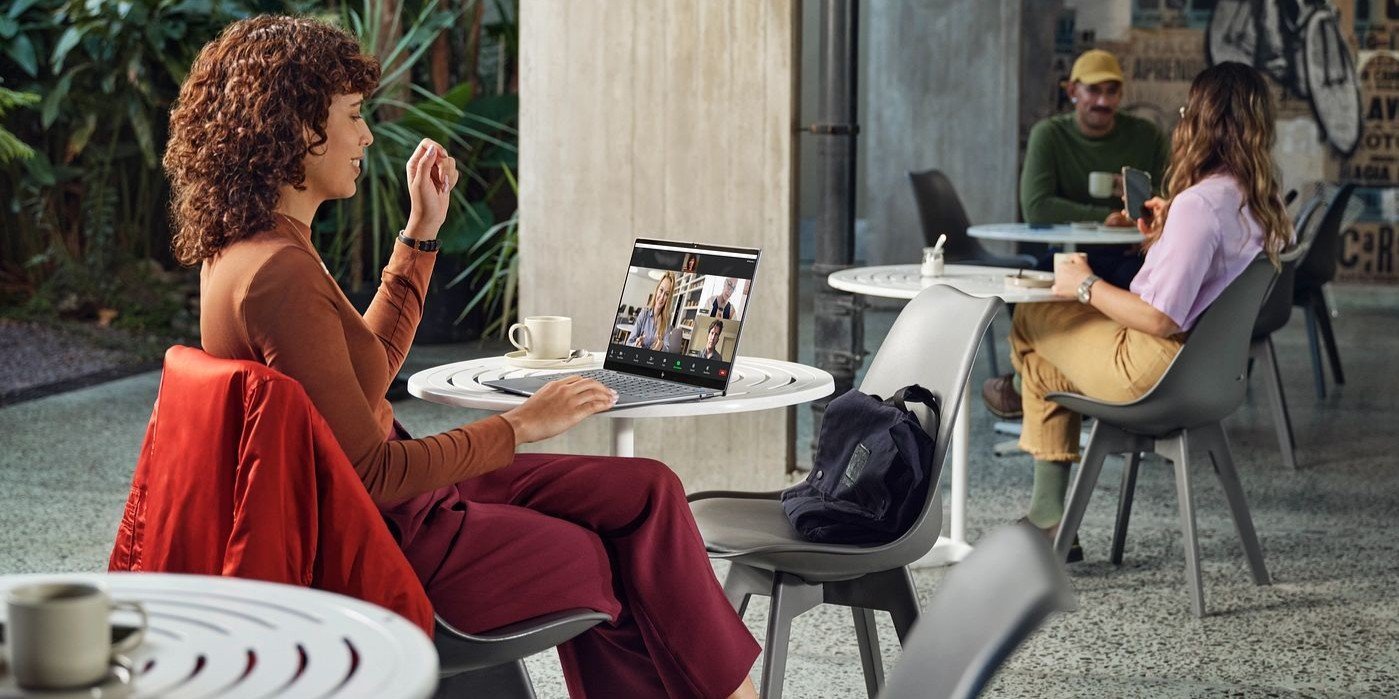
Remote work and online education have become integral parts of life across New Zealand, from Auckland’s bustling business district to Dunedin’s university campuses. This makes camera malfunctions particularly frustrating when they occur just before critical Zoom meetings or virtual lectures. If your HP laptop camera suddenly stops working with Zoom, you’re not alone—this is one of the most common technical issues Kiwi professionals and students face.
The good news is that most HP laptop camera problems can be resolved quickly without advanced technical expertise. Whether it’s a simple privacy setting, outdated driver, or Zoom configuration issue, this comprehensive guide will walk you through proven solutions to get your camera working smoothly again for your next important video call.
Quick Fix Success Rate:
Over 80% of HP laptop camera issues are resolved through the first five troubleshooting steps outlined below, typically taking less than 10 minutes to complete.
Contents
- Immediate Quick Fixes (Try These First)
- HP Camera Driver Solutions
- Windows Camera Settings Troubleshooting
- Zoom-Specific Troubleshooting
- Hardware Diagnostics and Issues
- Advanced Troubleshooting Options
- Preventative Measures and Best Practices
- Troubleshooting Quick Reference
- Optimal Camera Setup Tips
- Understanding New Zealand’s Video Calling Landscape
- Conclusion: Restoring Camera Functionality
Immediate Quick Fixes (Try These First)
Start with These Simple Solutions
Before diving into complex troubleshooting, these quick fixes resolve the majority of HP laptop camera issues with Zoom.
1. Check Physical Camera Privacy Controls
Physical Privacy Shutters: Many HP laptops feature physical camera covers or privacy shutters—small sliders located near the webcam lens. Ensure the shutter is open and not obstructing the camera.
LED Indicator Check: Look for a small LED light near your camera. If it’s not illuminating when you attempt to use the camera, this indicates a hardware or driver issue.
2. Verify Zoom Camera Settings
Camera Selection Process:
-
Open Zoom and navigate to Settings > Video
-
Click the dropdown next to “Select a Camera”
-
Choose your HP webcam (typically labelled “HP Wide Vision Camera” or “Integrated Webcam”)
-
Confirm video preview appears in the settings window
3. Application Reset Solutions
Quick Application Fixes:
-
Restart Zoom: Close completely and reopen the application
-
Reboot Laptop: The universal IT solution that resolves temporary software conflicts
-
Test Alternative Apps: Open Windows Camera app to verify if the issue is Zoom-specific or system-wide
4. Windows Privacy Permission Check
Ensuring Camera Access:
-
Navigate to Settings > Privacy > Camera
-
Enable “Camera access for this device”
-
Turn on “Allow apps to access your camera”
-
Verify Zoom is listed and enabled in the app permissions
Pro Tip:
If using Zoom in a web browser, check camera permissions in the browser settings (usually found by clicking the lock icon in the address bar).
HP Camera Driver Solutions
Resolving Driver-Related Issues
Outdated or corrupted camera drivers are amongst the most common causes of webcam malfunctions on HP business laptops.
Using HP Support Assistant (Recommended Method)
Automatic Driver Updates:
-
Search for “HP Support Assistant” in Windows search
-
Open the application and allow device access if prompted
-
Select “My Devices” and choose your laptop
-
Navigate to Updates section for automatic driver scanning
-
Install recommended camera driver updates and restart when prompted
Manual Driver Installation
For Advanced Users:
-
Visit HP Support website: https://support.hp.com/nz-en/drivers
-
Enter your laptop’s serial number or allow HP to detect your product
-
Locate camera drivers in Driver-Graphics or Driver-Webcam sections
-
Download compatible driver for your Windows version
-
Install and restart your laptop
Clean Driver Reinstallation
When Updates Don’t Work:
-
Open Device Manager (right-click Start button)
-
Expand “Cameras” or “Imaging Devices” section
-
Right-click your webcam (e.g., “HP Wide Vision Camera”)
-
Select “Uninstall device” and tick “remove driver software” option
-
Restart laptop to trigger automatic driver reinstallation
Windows Camera Settings Troubleshooting
System-Level Configuration
Sometimes Windows camera settings need adjustment independent of Zoom-specific configurations, particularly on personal laptops used for both work and leisure.
Device Manager Diagnostics
Hardware Status Check:
-
Yellow warning signs indicate driver problems
-
Disabled devices need manual re-enabling
-
Missing devices suggest hardware connectivity issues
Privacy Settings Reset
After Windows Updates: Windows updates occasionally reset privacy configurations. Re-verify camera access permissions in Settings > Privacy > Camera after major system updates.
Windows Camera App Testing
Isolation Testing: Open the built-in Windows Camera app to determine if the issue is Zoom-specific or affects all applications. This helps identify whether the problem lies with Zoom configuration or broader system issues.
Zoom-Specific Troubleshooting
Application-Level Solutions
When your camera works in other applications but not in Zoom, the issue likely involves Zoom’s settings or installation.
Advanced Video Settings Configuration
Zoom Video Options:
-
HD Video: Try disabling “Enable HD” temporarily (can cause issues on older systems)
-
Video Preview: Enable “Always show video preview dialogue when joining meetings”
-
Mirror Effect: Adjust “Mirror my video” setting for personal preference
-
Virtual Background: Disable virtual backgrounds if experiencing performance issues
Multiple Camera Management
When External Cameras Interfere: If you’ve previously used external webcams, Zoom may default to disconnected devices. Always manually select your integrated HP webcam from the camera dropdown menu.
Zoom Updates and Reinstallation
Software Refresh:
-
Check for Zoom updates: Profile picture > Check for Updates
-
Clean reinstallation: Uninstall via Windows Settings > Apps, then download fresh installer from Zoom’s official website
-
Reset to defaults: Fresh installation eliminates corrupted settings and preferences
For students using student laptops, keeping Zoom updated ensures compatibility with university systems and educational platforms commonly used across New Zealand institutions.
Hardware Diagnostics and Issues
When Software Solutions Fail
If software troubleshooting doesn’t resolve the issue, hardware problems may be the cause.
HP Hardware Diagnostics
Built-in Testing Tools:
-
Download HP PC Hardware Diagnostics from HP’s official website
-
Run camera component tests to identify hardware failures
-
Document error codes for HP Support if issues are detected
Physical Connection Problems
Hardware-Specific Issues:
-
Convertible/Detachable Models: Camera connectors can loosen; try reseating keyboard or tablet connections
-
Impact Damage: Physical damage to the camera module or connecting cables
-
Age-Related Failure: Older laptops may experience hardware component degradation
When to Contact HP Support
Professional Service Indicators:
-
Hardware diagnostics fail completely
-
No camera device detected in Device Manager
-
Physical damage visible to camera assembly
-
Warranty coverage available for repair or replacement
Advanced Troubleshooting Options
For Persistent Issues
These solutions address less common but potentially effective fixes for stubborn camera problems on Intel laptops.
System Restore
Rolling Back Recent Changes: If your camera stopped working after recent software installations or updates, use System Restore to return to a previous working state.
BIOS/UEFI Camera Settings
Hardware-Level Configuration:
-
Restart laptop and press F10 (or Esc then F10) during boot
-
Navigate BIOS menus to find camera/webcam settings
-
Ensure camera is enabled in hardware configuration
-
Exercise caution - incorrect BIOS changes can affect system stability
Third-Party Software Conflicts
Security Software Interference:
-
Antivirus privacy features may block camera access
-
VPN software occasionally interferes with camera functionality
-
Temporarily disable security software to test camera functionality
Preventative Measures and Best Practices
Avoiding Future Camera Issues
Pre-Meeting Camera Testing
Proactive Preparation:
-
Use Zoom’s “Join a Test Meeting” feature before important calls
-
Enable automatic camera check in Zoom settings
-
Test camera in Windows Camera app regularly
Regular Maintenance
System Health:
-
Update HP Support Assistant monthly for driver maintenance
-
Keep Zoom updated to latest version for bug fixes and improvements
-
Monitor Windows Updates for camera-related patches
This approach proves especially important for professionals using premium laptops who rely on consistent performance for client meetings and presentations.
Troubleshooting Quick Reference
Step-by-Step Priority Order
Troubleshooting guide with time estimates and success rates
| Priority | Solution | Time Required | Success Rate |
|---|---|---|---|
|
1
|
Quick Fixes
Privacy shutter, Zoom settings, restart
|
2-5 minutes
|
60%
|
|
2
|
Permissions
Windows privacy settings check
|
3-5 minutes
|
20%
|
|
3
|
Driver Update
HP Support Assistant or manual update
|
10-15 minutes
|
15%
|
|
4
|
Zoom Reinstall
Clean application installation
|
5-10 minutes
|
3%
|
|
5
|
Hardware Test
HP diagnostics and support contact
|
15+ minutes
|
2%
|
Important:
Follow the troubleshooting steps in order of priority. Start with Quick Fixes as they have the highest success rate and lowest time investment. Only proceed to the next step if the previous one doesn't resolve the issue. Success rates are based on common troubleshooting scenarios and may vary depending on the specific problem.
Optimal Camera Setup Tips
Maximising Video Call Quality
Beyond troubleshooting, these tips ensure professional video call appearance for business laptops:
Lighting and Positioning:
-
Face light sources rather than sitting with back to windows
-
Clean camera lens regularly with microfibre cloth
-
Stable surface placement prevents video wobbling and shaking
-
Eye-level positioning creates more professional appearance
Audio Integration:
-
Test microphone simultaneously with camera during setup
-
Use headphones to prevent audio feedback during calls
-
Background noise management through Zoom’s noise suppression features
Understanding New Zealand’s Video Calling Landscape
Regional Considerations for HP Laptop Users
New Zealand’s unique geographical and cultural factors present specific considerations for video calling technology. The country’s scattered population centres mean reliable video conferencing is essential for maintaining business relationships across cities like Auckland, Wellington, Christchurch, and smaller regional centres.
Many Kiwi professionals work flexible schedules that accommodate international time zones, particularly with Australian and Asian business partners. This demands reliable camera technology that performs consistently across varying lighting conditions throughout New Zealand’s diverse climatic regions.
Educational institutions from the University of Auckland to smaller polytechnics rely heavily on video conferencing for distance learning programmes, making camera troubleshooting knowledge essential for students using HP essential laptops for their studies.
Conclusion: Restoring Camera Functionality
Most HP laptop camera issues with Zoom stem from simple configuration problems rather than serious hardware failures. The systematic approach outlined above resolves the vast majority of camera malfunctions quickly and effectively for New Zealand users.
Key Takeaways:
-
Start simple: Check privacy shutters and permissions before complex solutions
-
Use HP tools: HP Support Assistant provides the most reliable driver updates
-
Test systematically: Isolate whether issues are Zoom-specific or system-wide
-
Maintain regularly: Proactive updates prevent many camera problems
-
Know when to escalate: Hardware diagnostics help determine when professional service is needed
When to Contact HP Support: If you’ve attempted all troubleshooting steps and your camera remains non-functional, HP provides comprehensive technical support. Many camera hardware issues are covered under warranty, potentially providing repair or replacement options at no additional cost.
Ready to Prevent Future Camera Issues?
Consider upgrading to a newer HP laptop model specifically designed for reliable video conferencing. Modern HP laptops include enhanced camera technology, improved driver stability, and better integration with popular video calling platforms like Zoom.
Helpful Resources:
-
HP Support Assistant Installation Guide
-
HP Driver Download Centre
-
HP Hardware Diagnostic Tools
-
Windows Privacy Settings Guide
Remember: Regular system maintenance and driver updates prevent most camera issues before they occur, ensuring reliable video call performance when you need it most for your professional commitments across New Zealand’s dynamic business landscape.
Technical Support: For persistent issues beyond this guide’s scope, HP’s official support channels provide personalised assistance and warranty service options tailored for New Zealand customers.
Recent Posts
Popular Posts




Products purchased through this store are sold and fulfilled by Ingram Micro (NZ) LTD

CONTACT US
Call us
- Sales
- 0800 854 848
- Technical support
- +64 9884 8600
Mon-Fri 9.00am - 6.00pm
(exc. Public Holidays)
Chat with us
- Our specialist are here to help
- Live chat
Mon-Fri 9.00am - 6.00pm
(exc. Public Holidays)
Submit feedback
We value your opinion!