
Start using the HP app today.

.png)
.png)


Your go-to for getting the most out of your device
Whether you're setting up a new device, printing a birthday card, or scanning a contract from the cafe, the HP app helps you stay on top of your important tasks so your “to-do” list becomes a “want-to-do” list.
You can keep track of your devices, get support when you need it, and discover new shortcuts—so you spend less time troubleshooting and more time doing what matters.

Your day to day, made simple

Set up made easy
Unbox your new laptop or printer and start using it in minutes with the HP app. Plus, keep an eye on your ink and paper levels so you’re ready to jump into work or fun.
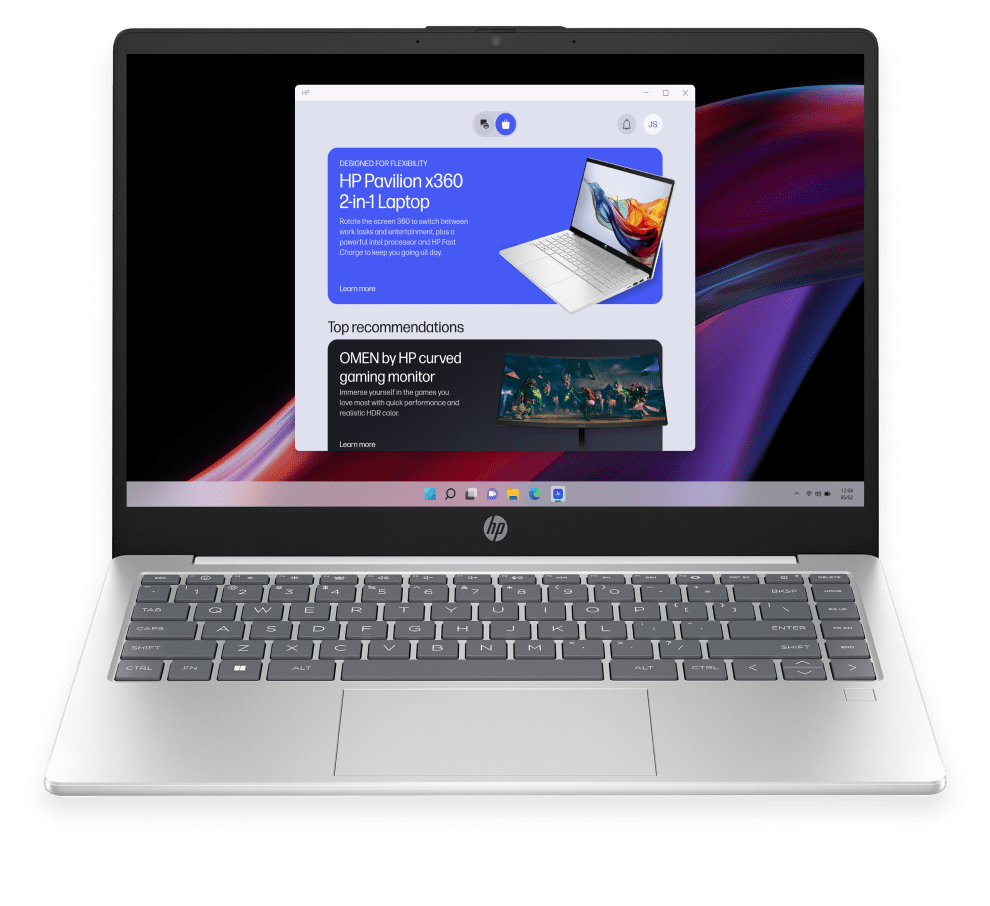
Make your HP tech work for you
Switch from work mode to movie night in a few clicks, pick up helpful tips, and explore HP products that fit right into your routine.

Print, scan, or share anywhere2
Vacation pics, work docs, and more—easily print, scan, or share with friends and co-workers in seconds.
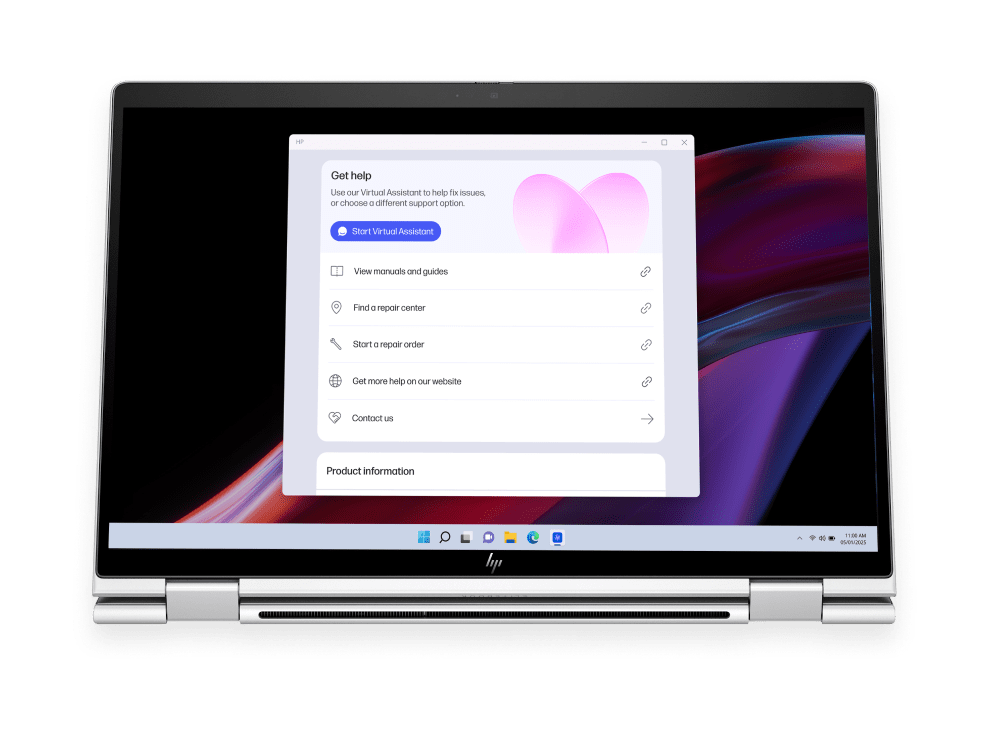
Need help?
Get answers fast.
If something goes wrong, tech support is right there. Chat with live experts, make a call, or find answers in the app—so you’re never stuck for long.
Future of Innovation
All in one place and ready for what’s next.
We’re bringing your favorite HP tools into one easy-to-use app—so everything from your PC to your printer works better, together. No more switching between apps or hunting for help. It’s your go-to place to manage your HP tech, stay productive with custom settings, and get support when you need it—so everything clicks, syncs, and just works.
And get ready, because this is just the beginning. Soon, we'll be adding even more features to make your HP experience feel totally yours.
Download today

Frequently asked questions
Where can I download the HP app for my device?
The HP app is available from the supported app store for your device. HP provides the HP app through major platform app stores.
- iPhone and iPad: Apple App Store
- Mac: Apple App Store
- Android: Google Play Store
- Windows: Microsoft Store
What happened to the HP Smart app?
The HP Smart app is no longer available for download. HP users can complete print tasks using the HP app instead.
Is the HP app the same as the HP Smart and myHP apps?
The HP app is not the same as the HP Smart or myHP apps. The HP app combines features from HP Smart and myHP into one app to support everyday printing and device tasks, as well as tech support and personalized recommendations.
Can I use the HP app to print or scan from my device?
Yes. The HP app supports printing and scanning and works as both a printer app and a scanner app on iOS, macOS, Android, and Windows.
What is the HP app and what can I do with it?
The HP app helps manage HP devices and common tasks in one app, including setup, settings, printing, scanning, and support.
- Manage HP laptops, printers, and accessories
- Set up new HP devices and personalize settings
- Print and scan documents using supported HP devices
- Access support within the HP app
What support options are available in the HP app?
The HP app offers messaging with live experts, phone support, and access to support resources. Support availability varies by country and business hours.
Do I need an HP account to use the HP app?
You do not need an HP account to use the HP app. However, signing in with an HP account is required to access full functionality in the HP app. Existing HP accounts can be used to sign in—there’s no need to create a new one.
Is the HP app free to use, or are there any costs?
The HP app is free to download. HP may introduce charges for select features in the HP app in the future.
What languages are supported in the HP app?
The HP app supports 37 languages. HP provides localized language options to support users across different regions. Some languages may not be available on all platforms.
Supported languages include:
- Arabic
- Bulgarian
- Chinese Simplified
- Chinese Traditional (HK)
- Chinese Traditional (TW)
- Croatian
- Czech
- Danish
- Dutch
- English (US)
- English (UK)
- Estonian
- Finnish
- French Canadian
- French European
- German
- Greek
- Hebrew
- Hungarian
- Italian
- Japanese
- Korean
- Latvian
- Lithuanian
- Norwegian
- Polish
- Portuguese (Brazil)
- Portuguese (Portugal)
- Romanian
- Russian
- Slovak
- Slovene
- Spanish
- Swedish
- Thai
- Turkish
- Ukrainian
How do I manage privacy and notification settings in the HP app?
You can manage privacy and notification preferences in the HP app through the app settings. HP provides access to these settings from the account area in the HP app.
- Select the Account icon at the top of the HP app navigation bar
- This opens a sidebar with app settings
- Privacy and notification preferences are available in the settings menu
How can I submit feedback or report bugs in the HP app?
HP allows users to submit feedback and report bugs directly in the HP app. Feedback is collected through a short in‑app survey.
- Select the account icon in the top navigation bar of the HP app
- Open Profile from the account menu
- Select Send Feedback from the navigation panel
- A short survey opens to submit feedback or report issues
- The survey is powered by Qualtrics
Where are the HP app Terms of Service located?
HP publishes the HP app Terms of Service on the HP website at hp.com/hp-app-terms-of-use.
Disclaimers
- Product images are for illustration purposes only, product availability and colors may vary by country.
- HP Smart and myHP are now the HP app, available for download on Windows 10 (64 bit) or 11 PCs; macOS computers; and for Apple and Android mobile phones and tablets. Windows PCs do not support print features at launch. The HP app requires download available at hp.com/hp-app. Not all HP devices, services, apps are available in the HP app. Certain features are available in English language only, and may vary by printer and PC model/country, and between desktop/mobile applications. HP reserves the right to introduce charges for use of select HP app functionality. Internet access required. HP account required for full functionality. Fax sending capability only. Live chat and phone support are available during business hours and varies by country. Chat service is localized in supported regions, and where not supported, will default to English. Supported conferencing features vary by device and device configuration. For complete Terms of Service see: hp.com/hp-app-terms-of-use.
- Choose HP+ at setup to activate benefits. HP+ requires an HP account, ongoing connection to the internet, and the use of only Original HP ink for the life of the printer. More at hp.com/plus.