Follow the steps listed below to calibrate your printer.
Note: It may be helpful to print out these instructions before you start to calibrate the printer.
| Figure | Step |
|---|---|
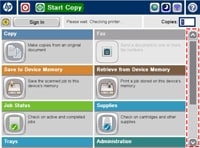
Figure 1: Home screen.
|
1. Go to the home screen on the touchscreen, then locate the scroll bar on right as shown in Figure 1. |
Figure 2: Touch Device Maintenance.
|
2. Touch the down arrow on the scroll bar to find DEVICE MAINTENANCE. Then touch DEVICE MAINTENANCE. |
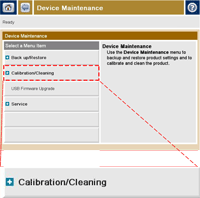
Figure 3: Touch Calibration/Cleaning.
|
3. Find and touch CALIBRATION/CLEANING in the left side menu on the screen. |
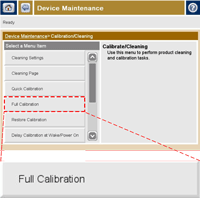
Figure 4: Touch Full Calibration.
|
4. Touch the down arrow on the left scroll bar to find FULL CALIBRATION. Then touch FULL CALIBRATION. |
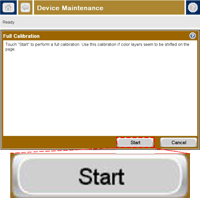
Figure 5: Touch Start.
|
5. Touch Start on the touchscreen as shown in Figure 5. |
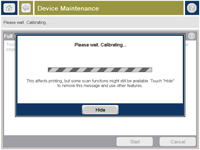
Figure 6: Wait for calibration.
|
6. The message CALIBRATING... displays on the touchscreen until the printer finishes calibrating. Note that this will take several minutes. |
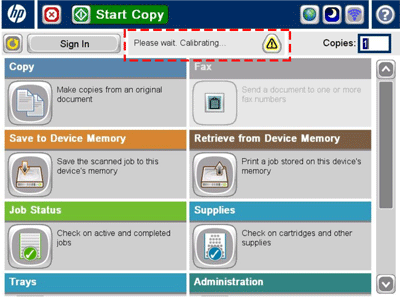
Figure 7: Wait for printer checking.
|
7. The message "Please wait, Calibrating" displays on the top of the screen until the printer finishes checking. |
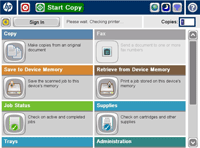
Figure 8: Return to Ready state.
|
8. The printer returns to Ready state after printer checking. |


Please let HP know if this helped you to resolve your issue, and help HP improve service.