
HP ePRINT

GOOGLE CLOUD PRINT


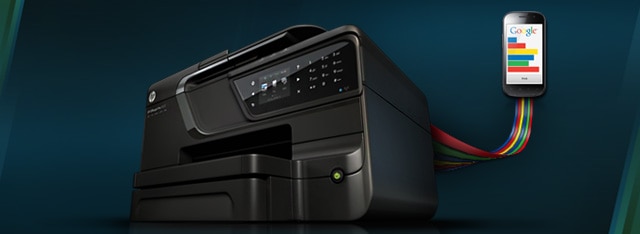
Google Cloud Print™: Link your HP ePrint-enabled printer’s unique email address to your Google account and send it a print job.

Looking for an easy way to print?

Here’s how Google Cloud Print works:

  1. Visit the Google Cloud Print website and select 'Add a Cloud-Ready Printer'.
  2. Enter your HP ePrint-enabled printer’s email address.
  3. Select 'Print' from the menu in the top right corner of any mobile Google App (like Gmail and Google Docs).
  4. Collect your freshly printed document from your printer’s tray.
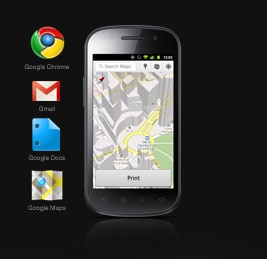
Google Cloud Print™ makes your printer available to a wide variety of Google web and mobile apps

No PC connection, no problem.

Because all HP ePrint-enabled printers are “Cloud Ready,” when one is linked to your Google account, it will automatically be available to you in Gmail, Google Docs and more, and it doesn’t require a PC to setup.*

* Google and Gmail are trademarks of Google Inc. Feature requires Google Cloud Print Ready printer or an existing printer connected to a PC with Internet access. Print times may vary. Currently only Google apps are supported. Some HP LaserJet Printers will require firmware upgrade.