Note: It may be helpful to print out these instruction before you start to change the environment.
| Figure | Step |
|---|---|
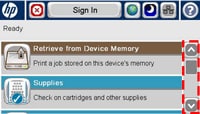
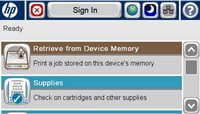
Figure 1: Home screen.
|
1. Go to the home screen on the touchscreen, then locate the scroll bar on right as shown in Figure 2. |
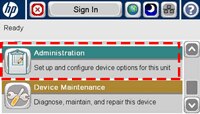
Figure 2: Touch Administration.
|
2. Touch the down arrow on the scroll bar to find ADMINISTRATION. Then touch ADMINISTRATION. |
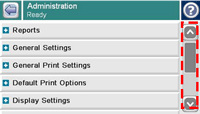
Figure 3: Scroll bars.
|
3. There are now a scroll bar as shown in Figure 4. |
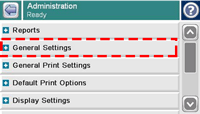
Figure 4: Touch General Setting.
|
4. Touch the scroll bar to find GENERAL SETTING. Then touch GENERAL SETTING. |
Figure 5: Touch Print Quality Pages.
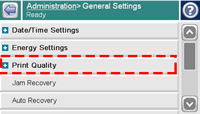
|
5. Find and touch PRINT QUALITY PAGES. |
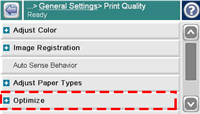
Figure 6: Touch Optimize Pages.
|
6. Touch OPTIMIZE page. |
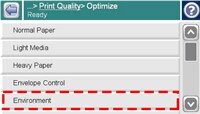
Figure 7: Scroll down the page to find the "Environment".
|
7. Scroll down the page to find the "ENVIRONMENT" page |
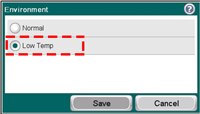
Figure 8: Select the LOW TEMP option.
|
8. Choose LOW TEMP and click SAVE. |
Figure 9: Return to Ready state.
|
9. The printer returns to the Ready state after printing the PQ troubleshooting pages. Pick up the PQ troubleshooting pages, and return to your computer to continue the troubleshooting procedure. |

Please let HP know if this helped you to resolve your issue, and help HP improve service.