Color Definition:
Yellow: 
Note: It may be helpful to print out these instructions before you start to replace the yellow print cartridge.
| Figure | Step |
|---|---|
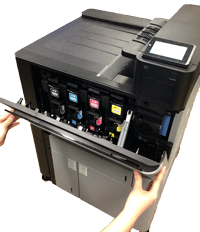
Figure 1: Open the front door
|
1. Open the front door. Make sure that the door is completely open. |
Figure 2: Locate the yellow print cartridge
|
2. Locate the yellow print cartridge. |
Figure 3: Release the yellow print cartridge
|
3. Grasp the handle of the yellow print cartridge and pull it toward yourself to release the cartridge from its slot. |
Figure 4: Pull the yellow print cartridge out
|
4. With one hand, slowly continue to pull the yellow print cartridge out of the printer, while supporting the yellow print cartridge with your other hand. Then put it on a clean level surface. CAUTION: Do not touch the green roller on top of the cartridge. Doing so can damage the cartridge. |


Please let HP know if this helped you to resolve your issue, and help HP improve service.