Color Definition: Cyan:  Magenta:
Yellow:
Black:
Magenta:
Yellow:
Black:
Note: It may be helpful to print out these instructions before you start to replace the cyan (blue) print cartridge.
| Figure | Step |
|---|---|
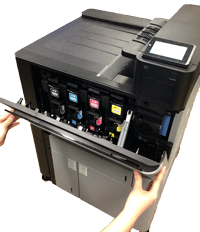
Figure 1: Open the front door
|
1. Open the front door. Make sure that the door is completely open. |
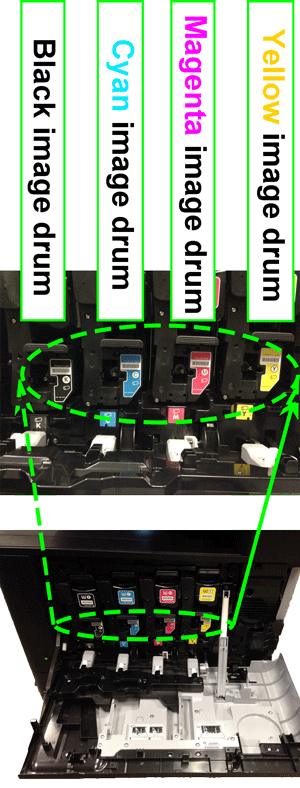
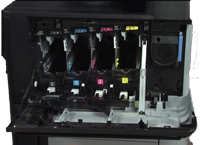
Figure 2: Locate all the image drums
|
2. Locate all the image drums. |
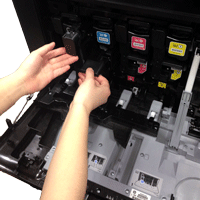
Figure 3: Release the image drums
|
3. Lift each of the image drum to release it from its slot. |
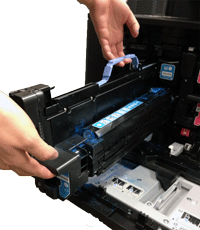
Figure 4: Pull the image drums out
|
4. With one hand, slowly pull each of the image drum out of the printer, while grasping the blue holder with your other hand as shown in Figure 4. |
Figure 5: Put the image drums on a clean surface
|
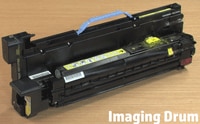
5. Put each of the image drum on a clean surface. To prevent damage to the imaging drum, it must be placed on a flat surface and positioned as shown in Figure 5. |
Figure 6: Empty slots of the image drums
|
6. After removed all the image drums, the slots are empty as shown in Figure 6. |
Figure 7: Reinsert each of the image drum
|
7. Reinsert each of the image drum. Make sure each of the image drum is correctly aligned, then push each of the image drum into its slot until it clicks into place. |
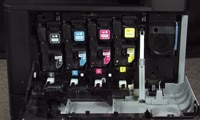
Figure 8: Filled slots of the image drums
|
8. After reinserted all the image drums, the slots are filled as shown in Figure 8. |
Figure 9: Close the front door
|
9. Grasp the grips on both sides of the front door and lift until it clicks into place. |
Please let HP know if this helped you to resolve your issue, and help HP improve service.