Follow the steps listed below to change the Color Settings for Graphics from Black Only to 4-Color.
- Click to open print dialog window shown below.
- Click Preferences in the print dialog window to go to Printing Preferences .
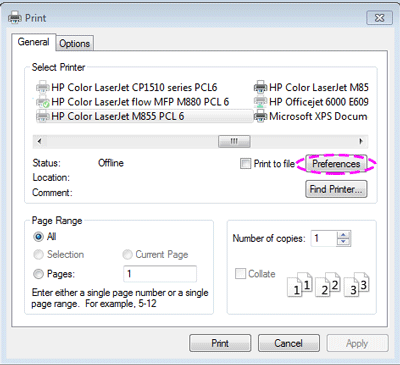
- Click the Color tab in the Printing Preferences window.

- Select Manual in the Color tab.

- Click Settings in the Color tab to go to the Color Settings.


- In the Color Settings window, span the Graphics Settings.

- Under Graphics, set Neutral Grays to 4-Color.

- Click OK to go back Printing Preferences.

- Click OK to finish changing the Color Settings for Graphics from Black Only to 4-Color.
