
Fig. Random light spots.1
As shown below, the issue may vary in location and appearance. Click a sample image below to see a larger version of it.

Fig. Random light spots.1

Fig. Random light spots.2

Fig. Random light spots.3

Description
The page scanned through the flatbed glass  print with random light spots. Every page has spots in the same place.
Most likely causes
- The flatbed glass has light contamination on it.



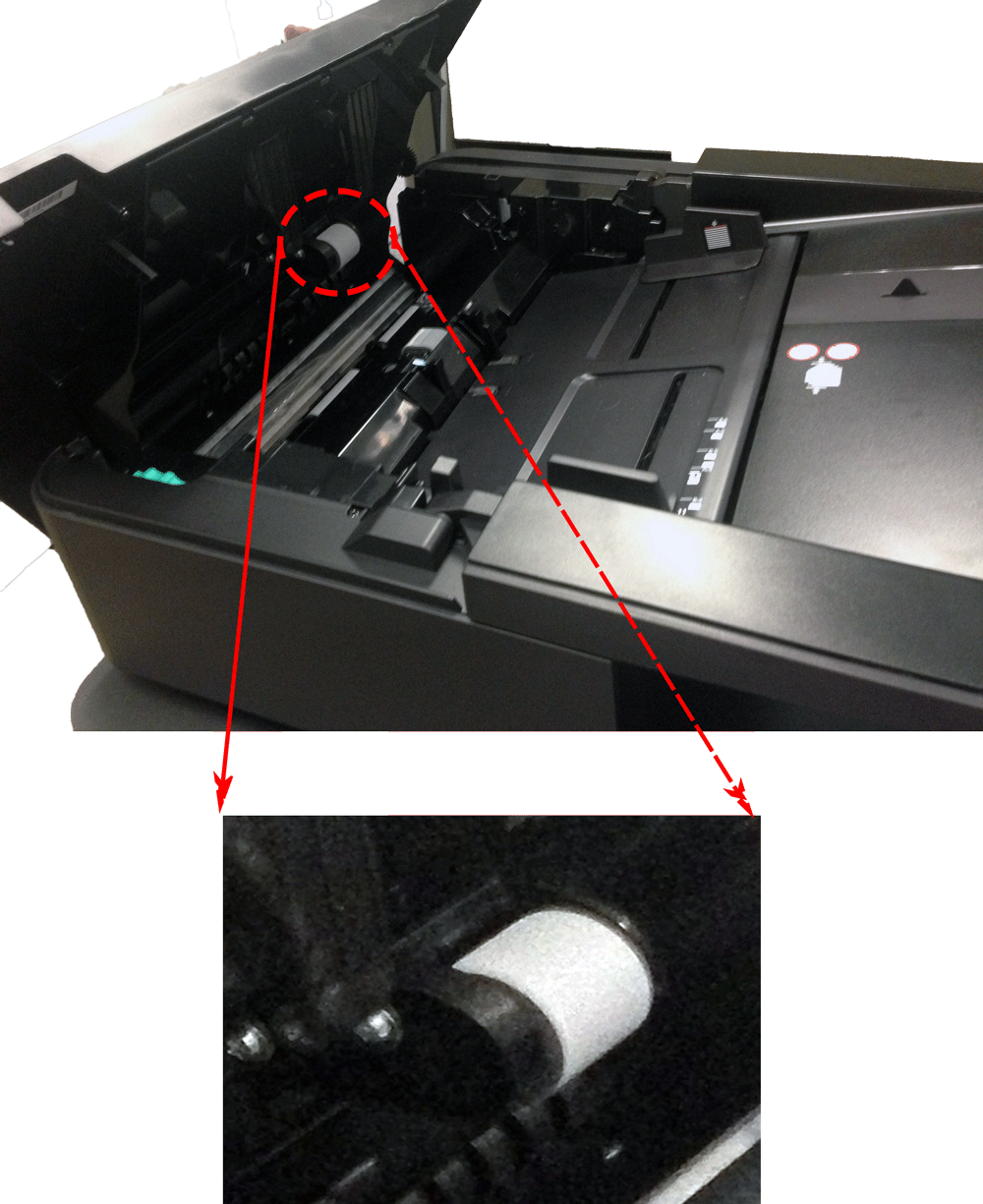
Troubleshooting and suggestions
- To confirm that random light spots are your print quality issue, you need to print a gray test page using Microsoft Internet Explorer by following the steps below.
- Perform the setup page procedure. Show me how.
- Click to display the gray test page and a print dialog window using your computer.
- Click the print button at the bottom of the print dialog window to print the gray test page.
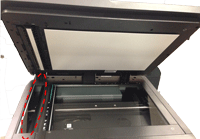
- Open the scanner lid and use the flatbed glass to make a copy of the gray test page that you printed earlier. Show me how.
- Look at the copy of the gray test page. If the copy of the test page shows random light spots as illustrated above, clean the flat bed glass Show me how.
- Open the scanner lid and use the flatbed glass to make a copy of the gray test page that you printed earlier. Show me how. If the issue is not resolved, calibrate the scanner. Show me how.
- Open the scanner lid and use the flatbed glass to make a copy of the gray test page that you printed earlier. Show me how.
- If the issue is not resolved, Contact HP.
Please let HP know if this helped you to resolve your issue, and help HP improve service.