Follow the steps listed below to print cleaning page.
Note: It may be helpful to print out these instructions before you start to calibrate the printer.
| Figure | Step |
|---|---|
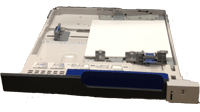
Figure 1: Load paper.
|
1. Load either 8.5 x 11-inch paper (letter) or A4 in Tray 2 of your printer as shown in Figure 1. |
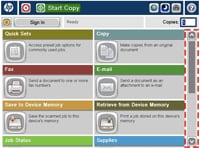
Figure 2: Home screen.
|
2. Go to the home screen on the touchscreen, then locate the scroll bar on right as shown in Figure 2. |
Figure 3: Touch Device Maintenance.
|
3. Touch the down arrow on the scroll bar to find DEVICE MAINTENANCE. Then touch DEVICE MAINTENANCE. |
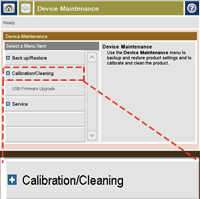
Figure 4: Touch Calibration/Cleaning.
|
4. Find and touch CALIBRATION/CLEANING in the left side menu on the screen. |
Figure 5: Touch Cleaning Page.
|
5. Touch the down arrow on the left scroll bar to find CLEANING PAGE. Then touch CLEANING PAGE. |
Figure 6: Touch Print.
|
6. Touch Start on the touchscreen as shown in Figure 6. |
Figure 7: Wait for printer checking.
|
7. The message CLEANING displays on the top of the screen until the printer finishes cleaning. Note that this will take several minutes. |
Figure 8: Return to Ready state.
|
8. The printer returns to Ready state after printer fuser cleaning page. |




Please let HP know if this helped you to resolve your issue, and help HP improve service.